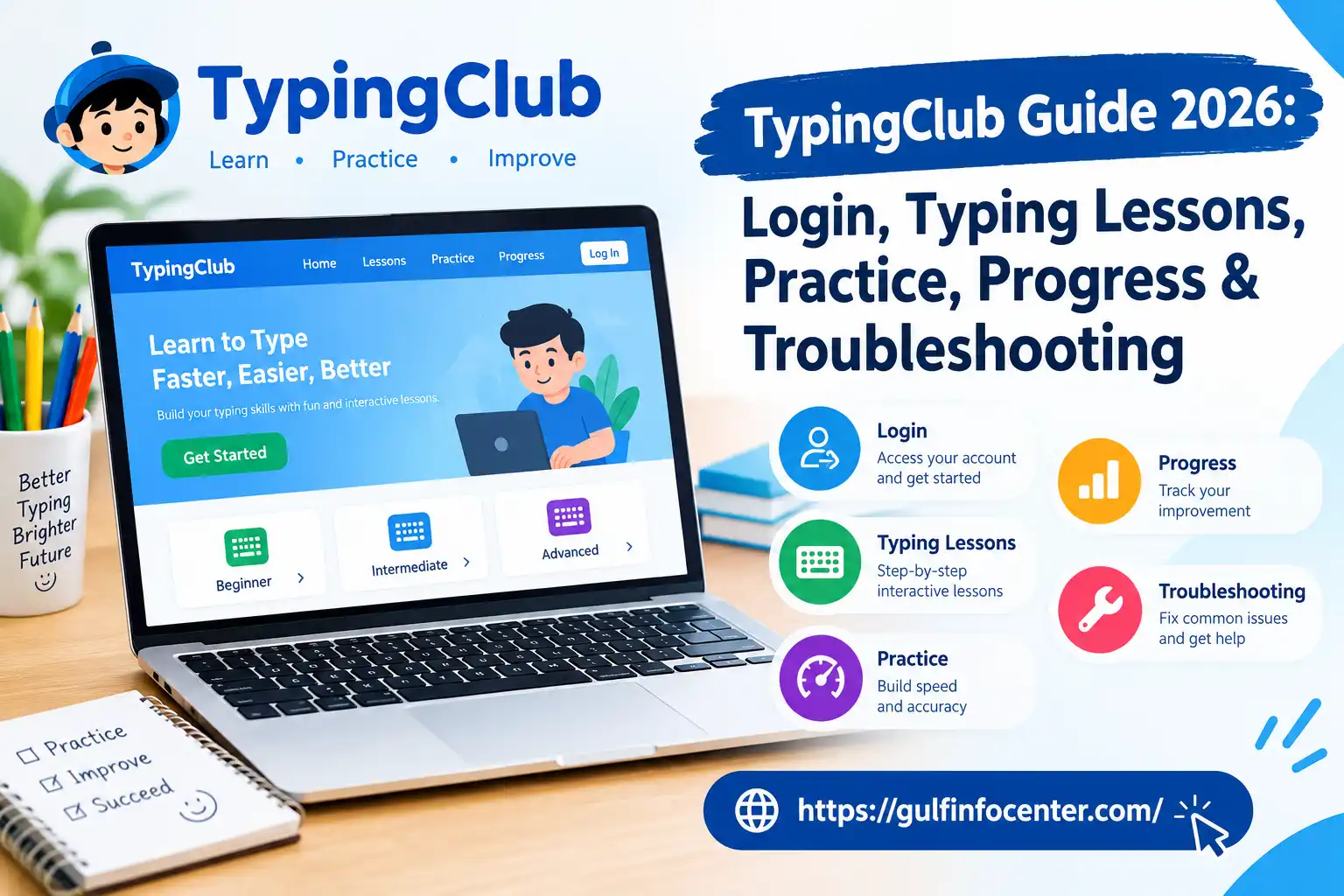

Typing Club is an online touch-typing platform that helps students, teachers, and individual learners build faster and more accurate keyboard skills. Because it runs in a modern web browser, users can practise without downloading or installing desktop software.
The platform combines structured typing lessons with interactive exercises, games, videos, stars, badges, and progress tracking. This makes it suitable for learners who want to improve their typing skills through regular, guided practice.
Important: Individual learners can access Typing Club and begin practising directly. Students using Typing Club through a school should normally sign in through their school’s dedicated Typing Club or edclub portal rather than relying on the public website.
What Is TypingClub?
Typing Club is an online platform built to teach touch typing through guided lessons and interactive practice. It focuses on helping learners become more comfortable with the keyboard while developing the skills needed for faster and more accurate typing.
With regular practice, users can work on several areas of keyboarding, including:
Typing Club states that its individual version is available for free, while the School Edition offers additional tools designed for schools and teachers.
Who Is TypingClub Designed For?
Typing Club can serve different types of learners depending on their goals. Students may use it to learn proper touch-typing techniques, while teachers and schools can use its tools to organise lessons and monitor student progress.
| User Type | Main Use |
|---|---|
| Students | Learn proper touch typing |
| Teachers | Assign lessons and monitor typing progress |
| Schools | Manage classes and track student development |
| Beginners | Build basic keyboard skills |
| Office Workers | Improve everyday typing speed |
| General Users | Practise typing online |
| International Users | Access typing courses in different languages |
TypingClub courses are available internationally. The provided source also indicates that the platform supports different languages, although the supplied text is incomplete at this point and does not specify the full language list.
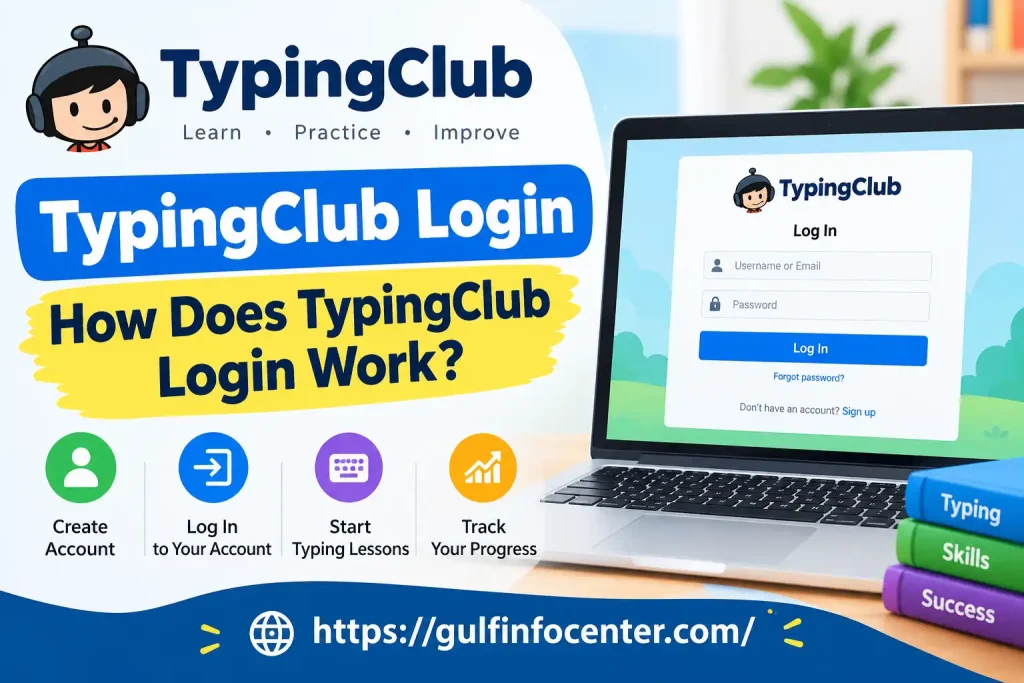
TypingClub LoginHow Does TypingClub Login Work?
The way you access TypingClub depends on whether you are practising independently or using an account provided through a school. Individual learners can start practising from the main website, while school students generally access their lessons through a dedicated free typing club or edclub portal.
Individual TypingClub Users
You do not necessarily need an account to begin practising as an individual. Visit the main Typing Club website, choose a course or lesson, and start typing.
Creating a profile is optional, but it can be useful if you want your practice progress to be saved.
Getting started:
School Students and edclub Portals
Students using Typing Club through their school will normally access a school-specific Typing Club or edclub portal. These portals commonly use an address similar to:
schoolname.edclub.com
Do not assume that school login credentials will work on the main public Typing Club website. The school portal is normally the appropriate place to access an assigned course.
Steps to Sign In Through a School Portal
The exact login options can vary according to the school’s setup. A typical process is:
The source text ends before explaining the remaining details about how school administrators configure available login methods, so no additional claims have been added here.strator configured the account. (Typing Club)
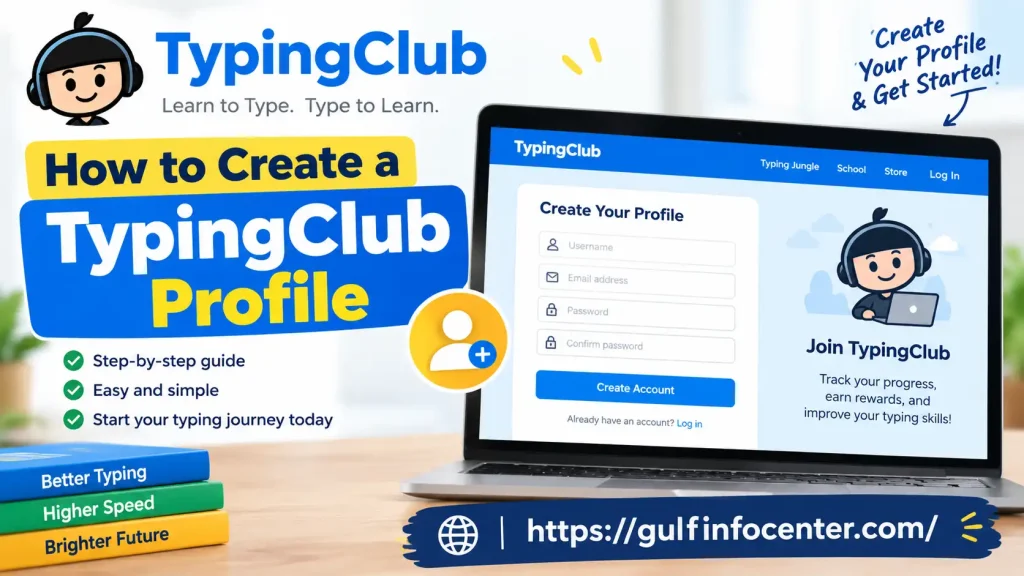
How to Create a TypingClub Profile
You can begin practising on the public TypingClub website without registering. A profile becomes useful when you want your practice progress to be saved and available when you return.
Individual Account Setup
The basic registration process is:
School accounts may follow a different setup. A teacher can create student accounts, or students may be able to join a class through a class code.
How to Join a TypingClub Class
Students using Typing Club through a school may receive a class code from their teacher. This code can be used through the school’s Typing Club or edclub portal to join the relevant class.
Class Code Enrolment
Teachers can enable class codes and provide students with the generated code or an enrolment URL.
How to Begin TypingClub Lessons
After gaining access to Typing Club, you can move into your available typing course and start practising. The lessons are designed to introduce typing skills progressively rather than requiring users to learn everything at once.
Starting a Lesson
Typing Club uses progressive lessons to develop typing speed and accuracy. For example, its Typing Jungle course moves from individual keyboard keys towards numbers, punctuation, and more advanced typing practice.
What Types of Lessons Does Typing Club Offer?
Typing Club includes several interactive lesson formats. Using different activities can make practice less repetitive while helping learners develop different aspects of keyboarding.
| Lesson Format | Main Purpose |
|---|---|
| Standard Typing | Provides traditional typing practice |
| Block Typing | Concentrates practice on individual characters |
| Dynamic Lessons | Focuses on weaker letter combinations |
| Games | Makes typing practice more interactive |
| Videos | Offers instruction and demonstrations |
| Story Lessons | Combines typing practice with narrative content |
The available lesson formats are intended to keep practice varied while supporting the development of typing skills.
How to Improve Your Typing Speed
Typing faster is useful, but chasing a high WPM score too early can lead to poor typing habits. A better approach is to build accurate finger movement first and increase speed as your accuracy becomes more consistent.
For better results:
Typing Club calculates WPM using a standard word length of five keystrokes.
How the Typing Club Star System Works
Typing Club uses a star-based achievement system across many of its lessons. Rather than simply completing an exercise once, you can use the results to identify mistakes and decide whether another attempt is worthwhile.
A practical approach is:
Typing Club recommends repeating lessons until you earn all five stars.
Which Typing Statistics Can You Track?
Typing Club can provide several types of performance information, allowing learners to see more than just their WPM score.
Depending on the lesson and available reporting features, progress information can include:
One useful distinction is between accuracy and real accuracy. Regular accuracy reflects the final result after corrections, while real accuracy considers mistakes made before they were corrected.
Key Typing Metrics Explained
| Metric | What It Represents |
|---|---|
| WPM | Words typed per minute |
| Accuracy | Final accuracy after corrections |
| Real Accuracy | Accuracy before corrections are taken into account |
| Attempts | Number of completed lesson attempts |
| Typing Time | Time spent actively typing |
| Learning Time | Time spent learning through lessons and videos |
| Coverage | Percentage of keyboard keys learned and used correctly |
What Is a Good Typing Practice Routine?
Consistency matters more than completing one very long practice session and then taking several days off. Your routine should also change as your typing ability improves.
Beginner Routine
If you are still learning keyboard fundamentals:
Intermediate Routine
Once basic finger positioning becomes more comfortable:
Advanced Routine
For more experienced typists:
The basic rule remains the same: build accuracy first, then increase speed.
Can You Use TypingClub on Mobile or iPad?
Typing Club is primarily designed as a browser-based typing platform. For supported school editions, students can also use the EdClub iPad app.
However, touch typing depends on physically feeling and reaching the keys. Typing Club therefore recommends using an external keyboard when learning touch typing.
For serious typing practice, a physical keyboard is more suitable than relying on an on-screen keyboard.
What Do You Need to Use TypingClub?
Because Typing Club is web-based, you do not normally need to install desktop software to use the platform.
You generally need:
Typing Club specifically recommends Google Chrome, while modern browsers are supported.
Typing Club Login and Access Problems
Login issues are particularly common for students who are using school-managed accounts. The first thing to establish is whether you are using the correct public website or your school’s dedicated TypingClub/edclub portal.
The School Login URL Is Not Working
If your school has provided a custom portal, use that address rather than relying on the public Typing Club homepage.
What to do: Ask your teacher or school administrator for the correct school login URL.
You Forgot Your Password
Password recovery for school accounts depends on the configuration chosen by the school.
If students are allowed to reset their own passwords, you may be able to use the available recovery process. Otherwise, contact your teacher or school administrator for assistance.
Google or Microsoft Sign-In Does Not Work
When a school uses single sign-on, make sure you are using the account associated with your Typing Club access.
Try this sequence:
Google and Microsoft 365 login methods need to be enabled and configured by the school administrator.
Your Class Code Is Not Working
If a teacher has provided a class code but you cannot use it, check the following:
If these checks do not solve the problem, ask your teacher to verify the class code.
What Can Teachers Do With TypingClub?
The School Edition provides teachers with tools for managing students, classes, courses, and learning progress.
Teacher tasks can include:
Typing Club also provides tools that allow teachers to assign lesson ranges and adjust difficulty according to student ability.
How Can a Teacher Add a Class?
Teachers can create classes individually or add them in bulk. For an individual class, the general workflow is:
Classes → Add Class → Enter Class Details → Select Course → Add Class
Depending on the setup, class information can include:
What Courses Are Available on TypingClub?
Typing Club offers different typing courses for users with different learning needs and skill levels.
One of the major courses is Typing Jungle. It contains hundreds of lessons that progress through keyboard fundamentals, numbers, punctuation, and more advanced typing practice.
Typing Club courses can also be available in multiple languages. The supplied information lists languages including Spanish, French, German, Japanese, Korean, Persian, and Portuguese, along with Russian and others.
TypingClub Account and Login Safety
Basic account security is important, particularly when using a school-managed account.
Keep these practices in mind:
FAQs
Final Thoughts
TypingClub is most useful when you treat it as a structured learning system rather than a race for the highest WPM score. Correct finger placement, consistent practice and strong accuracy should come before aggressive speed improvement.
Individual learners can start from the public TypingClub website, while students using school accounts should use the portal and class information provided by their teacher or school administrator.