
Tap Payments is a Kuwait-founded payment technology company that enables businesses to accept digital payments through online checkout systems, payment links, POS terminals, and a range of supported local and international payment methods. Its solutions cater to entrepreneurs, small businesses, e-commerce stores, and large enterprises looking for convenient ways to manage customer payments.
This guide covers the key aspects of using TapPayments in Kuwait, including merchant account setup, payment link creation, transaction management, payout processes, and common payment issues. It is intended for business owners, merchants, online sellers, entrepreneurs, and anyone seeking to understand how Ta Payments works.
Important: TapPayments is primarily designed for businesses that need to collect payments from customers. Its merchant dashboard is used to manage payment activities, while the customer checkout page is where buyers complete their transactions. It is not a personal banking platform or a general-purpose government service portal.
What Is Tap Payments?
Tap Payments is a digital payment service that enables businesses to accept customer payments through websites, mobile apps, payment links, and other online channels.
The service operates across several Middle Eastern markets, including Kuwait, Saudi Arabia, the United Arab Emirates, Bahrain, and Qatar. It provides businesses with payment solutions suited to different ways of selling, from online stores and mobile applications to payment links shared directly with customers.
Overview of Tap Payments Services
Tap Payments provides a range of payment solutions that help businesses in Kuwait accept customer payments online and in person. Merchants can choose the services that suit their business model, whether they operate an e-commerce store, run a physical shop, or collect payments remotely.
| Service | Main purpose |
|---|---|
| Payment Gateway | Accept online payments through a website or mobile application. |
| Payment Links | Share a payment URL with customers without needing a dedicated website. |
| goCollect | Create bills and manage payment collection. |
| POS Terminals | Receive payments in person at retail shops, events, and other business locations. |
| Online Checkout | Allow customers to select supported payment methods when completing an online purchase. |
| Subscription Payments | Collect recurring payments for eligible products or services. |
| Payouts and Reports | Monitor transactions and track settlements to a business bank account. |
Tap Payments supports payment options such as KNET and payment cards, along with selected digital wallets and other methods. The options available to a merchant may vary according to the account configuration, business requirements, and local availability.
Getting Started With Tap Payments in Kuwait
Before accepting customer payments, choose the Tap Payments solution that best fits your business. Your choice will depend on how you sell—whether through social media, an e-commerce website, or a physical shop.
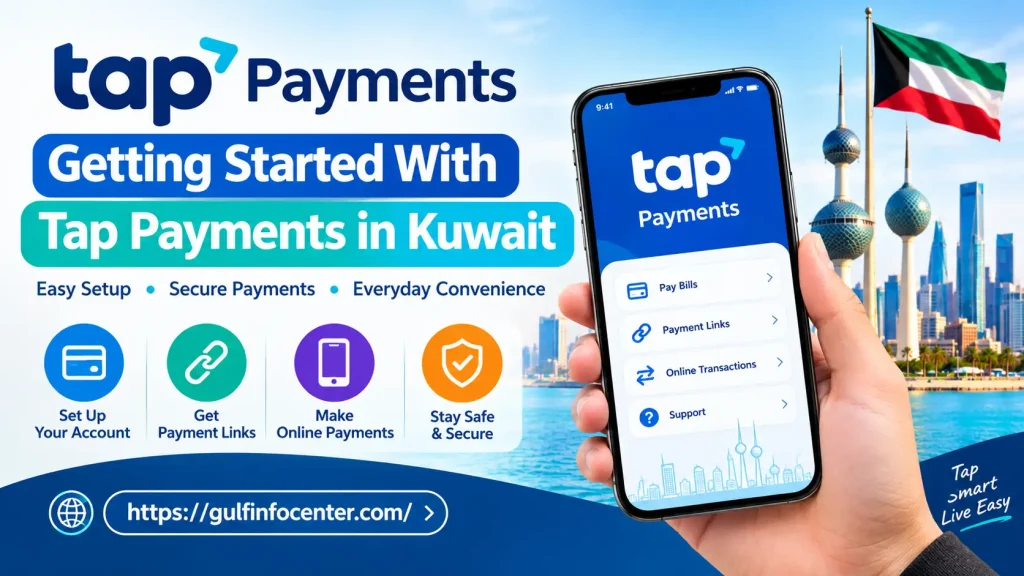
Step 1: Choose the Right Tap Payments Solution
goCollect — Payment Links and Billing
goCollect is a suitable option for freelancers, service providers, social media sellers, and small businesses that want to collect payments without building a website. It allows businesses to create bills and share payment links with customers.
goSell — Online Payment Gateway
goSell is designed for businesses that need to accept online payments through a website, mobile app, or supported e-commerce platform.
goTap — In-Person Payments
goTap is an option for retailers, physical shops, and event organisers that need point-of-sale (POS) terminals to accept payments in person.
Step 2: Visit the Official Tap Payments Website
Start by visiting the official Tap Payments Kuwait website to explore the available services and registration options.
Security tip: Check the website address before entering business information or uploading identification documents.
Step 3: Register Your Account
If you choose goCollect, you will need to register before creating bills and collecting payments. Follow the instructions provided through the official application or registration process.
Tap’s published goCollect guidance lists bank account details and images of both sides of the Civil ID among the activation requirements. Corporate applicants may also need to provide a company licence and proof of the authorised signatory.
Requirements can vary depending on the account type and eligibility. Check the latest document requirements with Tap before submitting your application.
Important: Completing registration does not automatically mean your account is approved for live transactions. Activation, fees, and available services depend on Tap’s requirements and its review of your account.
How to Create and Send a Tap Payments Link
Tap payment links allow businesses to request payments without needing a dedicated online shop. After creating a bill, you can share its payment link through supported channels such as WhatsApp, SMS, email, or social media.

Step 1: Sign in to goCollect
Open the goCollect application and sign in to your activated account.
Step 2: Create a new bill
Tap the plus (+) button or choose the available option for creating a new bill.
Step 3: Enter the bill details
Add the payment amount and a description of the product or service. Include any applicable discount where the option is available.
Step 4: Add the customer’s information
Enter the requested customer details, such as their name and mobile number. Add an email address if you intend to send the bill by email.
Step 5: Review the bill
Before submitting, check the amount, currency, description, and recipient information. Make sure the details are correct to help prevent payment misunderstandings.
Step 6: Send or share the bill
Select the available send option. If goCollect generates a payment link, copy it and share it with the customer through a supported communication channel.
Step 7: Check the payment status
Return to goCollect to review the bill’s status. Depending on the available features, you may be able to check whether a bill has been sent, viewed, paid, refunded, or cancelled.
For detailed instructions, read Tap’s official guide: How to Send Bills Using goCollect
Tip: Review the bill details before sharing the link, and check its status in goCollect when confirming whether a customer has paid.ow to Send Bills Using goCollect.
Sending a Bill Through the Tap Web Dashboard
Merchants who prefer working on a computer can use the web-based billing tools available to their Tap account, where supported.
Dashboard labels and available options may differ depending on your account configuration. Refer to Tap’s official instructions for the documented procedure: How to Send a Bill on the Web Using Tap Dashboard.
Before sharing a payment link: Verify the bill amount and recipient details, and check your merchant dashboard to confirm whether the customer has completed the payment. A sent or viewed bill does not necessarily mean the transaction has been paid.Support
How to Pay Through Tap Payments Checkout
Customers can complete an online payment using a link provided by a business. The checkout process and available payment options depend on the merchant’s configuration and the payment methods supported for that transaction.

Steps to Complete an Online Payment
What Happens After a Successful Payment?
According to Tap’s goCollect guidance, customers receive a copy of the bill by SMS or email, depending on the contact information provided. The merchant also receives an email confirming the payment.
If you are paying a business’s bill, you generally do not need to create a merchant account simply to complete the transaction. Open the payment link and follow the checkout instructions provided.
Safety tip: If the merchant name, payment amount, or bill description looks unfamiliar, verify the request with the business before submitting your payment details.
Managing and Tracking Tap Payments Transactions
Merchants can use the Tap dashboard or goCollect application to monitor bills and review payment activity. Checking the recorded status helps businesses identify unpaid invoices, confirm completed transactions, and follow up when necessary.

Understanding Common Bill Statuses
| Status | Meaning |
|---|---|
| Pending | Payment is still awaited. Follow up with the customer when appropriate. |
| Delivered | The bill has been delivered to the customer. |
| Viewed | The customer has opened or viewed the bill. |
| Payment Attempt | A payment attempt has been recorded, but the final result should be checked. |
| Paid | The bill is recorded as paid. Review the transaction details for confirmation. |
| Refunded | A refund has been recorded. Check its processing status where available. |
| Cancelled | The bill has been cancelled. Verify its status before creating a replacement. |
| Expired | The bill has expired and may need to be issued again. |
Tap’s published billing guidance identifies statuses such as sent, delivered, viewed, payment attempt, paid, refunded, and cancelled. The exact labels and additional statuses may differ between products or dashboard versions.
How to Check a Payment
Follow these steps to review a transaction:
Important: Do not rely solely on a screenshot supplied by a customer as proof of payment. Confirm the transaction through your merchant dashboard or the official payment records before treating the bill as settled.omer. Confirm the payment in your own merchant records before treating an order as paid.
Tap Payments Kuwait: Payouts and Settlement Periods
When a customer pays through Tap Payments, the transaction must be processed before the funds are settled to the merchant’s bank account. A successful checkout does not necessarily mean the money will appear in the business account immediately.
According to Tap’s published guidance for Kuwait, the typical settlement periods are as follows:
| Payment Method | Published Settlement Timeline |
|---|---|
| KNET | Within 2 business days |
| Visa, Mastercard and AMEX | Within 5 business days |
These timelines are indicative rather than guaranteed. Actual settlement may depend on banking procedures, account settings, transaction reviews, and other processing requirements.
How to Check a Delayed Payout
If the expected funds have not arrived, follow these checks:
For further information, consult the official Tap Payments Kuwait payout guide.
Common Tap Payments Problems and How to Resolve Them
Payment issues can occur at checkout, during account access, or while transactions are being processed. The following troubleshooting steps can help customers and merchants identify the problem before contacting support.
Problem 1: The Payment Link Will Not Open
Try the following solutions:
Problem 2: Your Payment Is Declined
A declined payment may result from incorrect payment details, bank restrictions, insufficient available funds, or authentication requirements.
Before trying again, check whether the original transaction failed. This can help prevent duplicate payments.
Problem 3: Money Was Deducted but the Payment Status Is Unclear
If your bank shows a deduction but the merchant has not confirmed the payment, avoid immediately submitting another payment.
A bank deduction alone does not establish that the merchant’s bill has been successfully settled.
Problem 4: You Have Not Received a Payment Confirmation
If you believe your payment was successful but received no confirmation:
Problem 5: Your Merchant Payout Is Delayed
A payout may take longer than expected because of processing or account-related requirements.
Problem 6: You Cannot Access Your Merchant Account
If you are unable to sign in to the Tap dashboard, try these steps:
For additional assistance, visit the Tap Payments Support Centre. It provides guidance on billing, failed transactions, payouts, refunds, and account access.
Security reminder: Never share your password, one-time verification code, or other confidential authentication details with someone claiming to provide payment support. Use Tap’s official support channels when discussing account or transaction problems.
How to Contact Tap Payments Support in Kuwait
If you experience a failed transaction, delayed payout, account activation problem, or another payment-related issue, contact Tap Payments through its official support channels.
Tap Payments Contact Details
Tap also provides an escalation channel for complaints that remain unresolved. Visit the official Tap Payments Support Centre for the latest contact details and complaint escalation instructions.
When contacting support, provide the information needed to identify your issue:
Security reminder: Never share your full card number, PIN, account password, or one-time verification code in a support message.
Security Tips for Safe Online Transactions
Follow these precautions when paying through Tap links or managing a merchant account.
These steps can help reduce payment errors, protect account information, and make it easier to resolve disputes.
FAQs
Final Thoughts
Tap Payments Kuwait offers digital payment solutions for businesses that want to collect money online, share payment links, accept in-person payments, and manage transactions and payouts. For sellers who do not have a website, goCollect can be a useful starting point. Businesses with e-commerce websites or mobile apps can explore goSell, while physical retailers can investigate Tap’s point-of-sale options.
To get started, visit the official Tap Payments Kuwait website, choose the service that suits your business, and complete the required registration and verification steps. Once your account is active, use the official dashboard to monitor transactions and check payout details.
If you encounter payment errors, account access issues, or settlement delays, consult the Tap Payments Support Centre and provide the relevant transaction details. Always verify payment statuses and protect your account credentials when using digital payment services.t delays, consult the Tap Payments Support Center rather than relying on unofficial payment assistance websites.