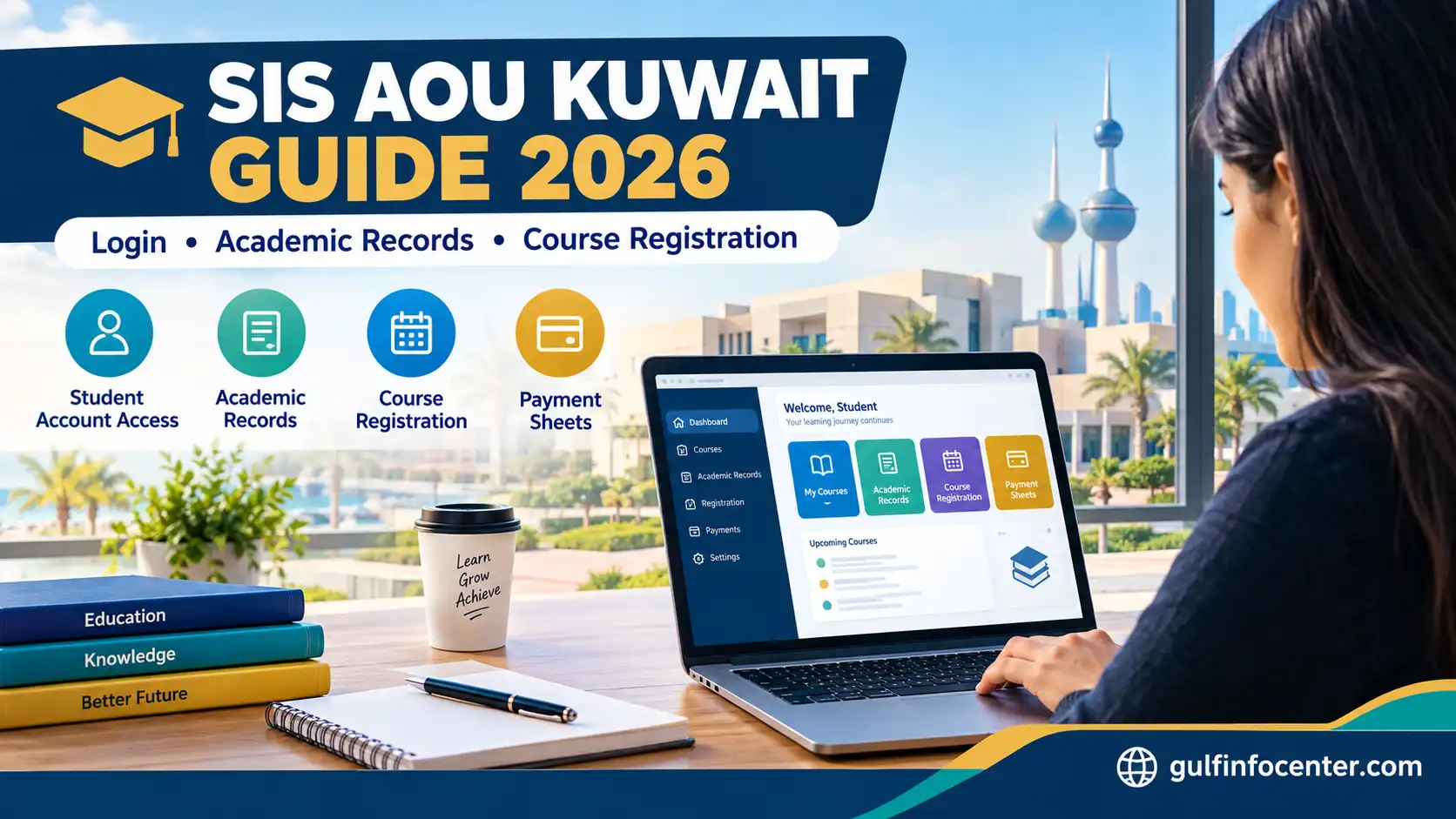

The Student Information System (SIS) at Arab Open University (AOU) – Kuwait provides students with a central online platform for managing their academic information and accessing essential university services. Through the portal, authorised users can view course details, add or withdraw registered courses, and print payment sheets for university-related transactions. It is designed to support both new and existing students who need convenient access to their academic records and available student services.
What Can Students Do Through the AOU SIS Portal?
The SIS portal brings several university services together in one place. The options displayed may differ according to a student’s account, academic status, and university permissions.
| Portal Feature | Available Function |
|---|---|
| Student account | Sign in using university credentials |
| Course information | Review course details |
| Course registration | Add or withdraw registered courses where permitted |
| Payment documents | Access and print payment sheets |
| Academic records | View grades and other available academic information |
| Student services | Use administrative services available to the account |
Readmore:Homepage
How to Log In to the AOU Kuwait SIS Portal
Students can access their accounts by following the university’s login procedure.
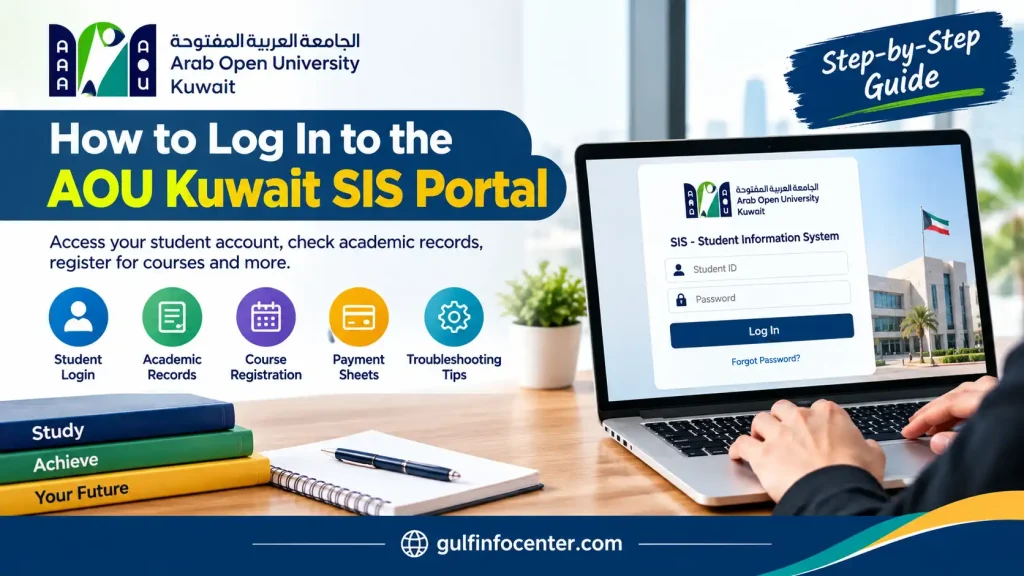
Step 1: Open the SIS Login Page
Open the official SIS portal in your browser. Before entering any information, check that the website address belongs to the university’s official domain.

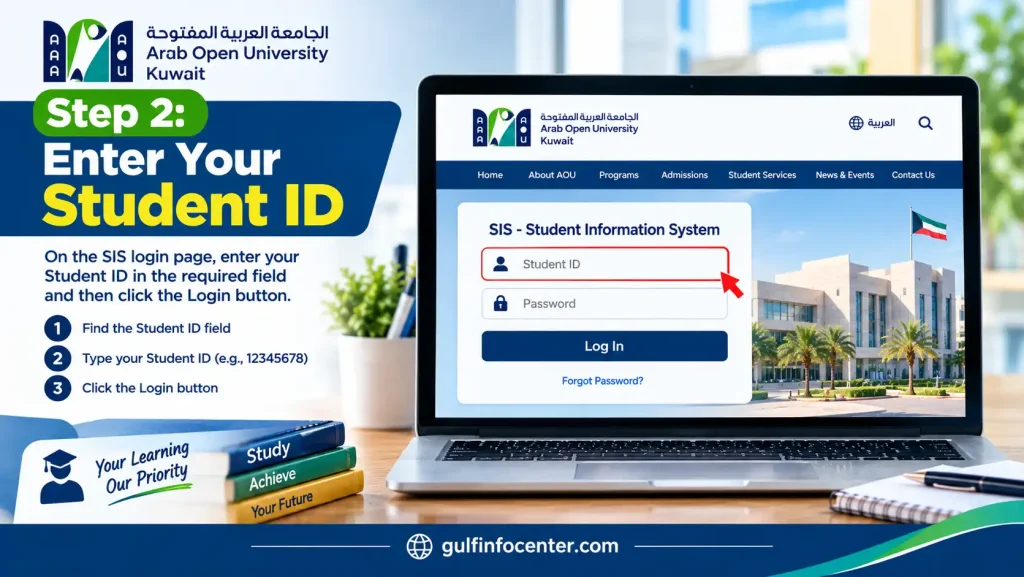
Step 2: Enter Your Student ID
Find the User ID field and enter your university student ID or assigned username. Check the details carefully and ensure there are no unnecessary spaces.
For student accounts, the student ID is identified as the default user ID.
Step 3: Enter Your Password
Type your current password into the Password field. New students should follow the initial-login instructions provided by the university and confirm their credentials with AOU if they are unsure which password to use.
Step 4: Complete Verification
If the login page displays a CAPTCHA or another verification check, complete it before selecting Login. A separate university email sign-in option may also appear; use it only if your account supports this method.
Step 5: Access Your Student Dashboard
After signing in, review the dashboard and select the service you need. If access is denied, avoid repeatedly guessing your password and contact university technical support if necessary.
Managing Your SIS Student Account
Once logged in, students can review the information and account options available to them.
Review Student Information
Change Your Password
If the portal provides a password-change feature, open the account or security settings and follow the displayed instructions. Enter your current password and choose a new one as required.
If you cannot locate this option, ask AOU technical support for assistance rather than following instructions intended for another university system.
Checking Academic Records and Grades
The gust sis may provide access to academic results and other student records. The available sections and menu names can vary.
To review your results:
AOU’s student handbook confirms that students can view grade details through the gust sis. If your results are not visible, check the university’s official announcements or contact the relevant department. Their absence does not necessarily mean there is a problem with your account.
Adding or Withdrawing Courses Through SIS
The portal supports adding and withdrawing registered courses, subject to university regulations, registration periods, and account permissions.
How to Add a Course
How to Withdraw a Course
Always verify the final registration status. Selecting an option does not necessarily mean the requested change has been completed successfully.
Accessing Payment Information and Printing Payment Sheets
The official SIS information identifies payment-sheet printing as one of the portal’s functions.
To access your payment information, sign in and look for a section related to payments, fees, finance, or your student account. Open the relevant payment details, review the displayed information, and use the available print or download option.
If a payment does not appear correctly, keep your transaction receipt and contact the university’s Finance Department for assistance.
Common SIS Login Problems and Solutions
| Problem | Suggested Solution |
|---|---|
| Incorrect student ID | Check your admission documents or student ID confirmation. |
| Incorrect password | Re-enter your password and check your keyboard settings. |
| Forgotten password | Use the official recovery option if available or contact IT support. |
| Account access denied | Ask the university to check your account status and permissions. |
| Portal not loading | Check your internet connection, refresh the page, or try another browser. |
| Course registration unavailable | Check the registration period and contact Admission and Registration. |
| Grades not displayed | Review official results announcements or contact the relevant department. |
| Incorrect payment information | Retain your receipt and contact the Finance Department. |
AOU Kuwait SIS Technical Support
Students who cannot resolve an account or portal issue may contact the relevant university department using the support details provided in the supplied information.
When contacting the university, explain the issue clearly and provide your student ID only through an official communication channel. A screenshot of the error may help the support team identify the problem. Never send your password or verification codes.
Security Tips for AOU SIS Users
Protect your student account by following these precautions:
FAQs
Final Overview
The AOU Kuwait SIS portal helps students access academic information, manage course registration, and obtain payment documents online. Using the correct login credentials, checking the status of important changes, and contacting the appropriate university department when necessary can help students manage their accounts more effectively.