

The SSO Student Portal Login provides students and authorised education users with a central way to access supported UAE Ministry of Education (MOE) digital services. Whether you are searching for the student portal login, EDI student portal, or student portal MOE gov ae, you should always access the service through the official MOE portal and protect your login details. The process may include signing in with your account credentials or using UAE PASS, while account activation and password recovery options can help users regain access when needed. This guide covers the main SSO login process, account activation, password recovery, UAE PASS access, and common login issues.
SSO Student Portal Login — Official Access
Students looking for the SSO student portal login should first confirm that they are on an official UAE Ministry of Education website before providing any personal or account information. The official SSO page is designed to authenticate users through their account credentials, while supported MOE services may also provide access through UAE PASS.

Official SSO Student Portal
The SSO login screen provides the main fields and options needed to access an account. These can include:
- Email or account details
- Password entry
- Remember Me option
- Password recovery or Forgot Password link
- UAE PASS or digital identity sign-in where available
- Language selection
- Links to MOE support and related information
UAE PASS and MOE Services
The UAE Ministry of Education uses unified authentication for supported digital services, so some users may be directed through UAE PASS instead of entering their MOE credentials directly. The exact options can vary depending on the service being accessed.
Important: MOE services do not necessarily use an identical login screen. A particular service may redirect you to the Ministry’s unified authentication system before completing the sign-in process.
Understanding the SSO Student Portal
SSO (Single Sign-On) is an authentication method that lets an authorised user access supported online services through an existing account or digital identity, rather than maintaining separate login details for each service. For UAE education users, the MOE SSO system provides a central access point for supported Ministry services, making authentication more streamlined while keeping access linked to the user’s authorised account.
The phrase student portal is broader than SSO itself. It can describe online platforms that provide student-related education services, whereas SSO refers specifically to the authentication process used to sign in and access supported systems.

SSO, MOE Website, Student Portal and UAE PASS
These terms serve different purposes:
| Platform | Main purpose |
|---|---|
| MOE main website | Ministry information, announcements and education services |
| SSO login | User authentication and account access |
| Student portal | Student-oriented digital services |
| UAE PASS | Digital identity for supported online authentication |
Knowing the difference can make searches such as student portal login, SSO student portal, and MOE student portal easier to understand. The service you need may determine which MOE platform or authentication method you should use.
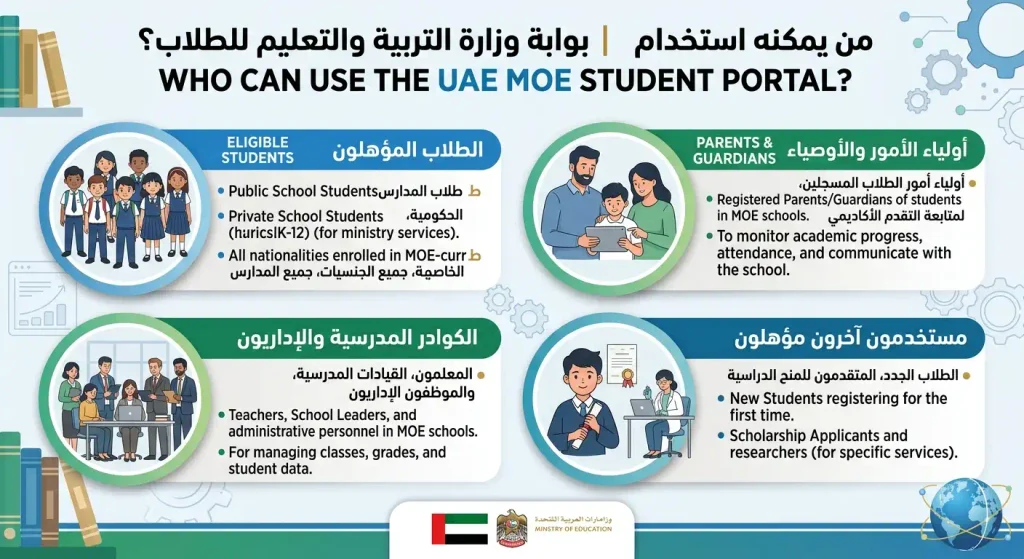
Who Can Use the UAE MOE Student Portal?
Eligibility for the UAE MOE student portal depends on the specific Ministry service and the permissions linked to the user’s account. Depending on the service, access may be available to:
- Students
- Parents or guardians, where supported
- Teachers
- Education-sector users
- Other authorised MOE users
Access is not identical across all MOE services. If a service is missing from your account after signing in, it may not be enabled for your user type, or the service could be provided through a different platform.
What You Need Before SSO Student Portal Login
Having the correct details ready can make the student portal login process smoother. The requirements can vary by service, but users may need:
- An active MOE account
- The registered email address or account details
- A valid password
- An activated UAE PASS account when digital identity authentication is required
- Reliable internet access
- An up-to-date supported web browser
For services that use UAE PASS, the account must be activated before authentication can be completed. According to the source material, UAE PASS provides a unified digital identity for citizens, residents and visitors.
How to Sign In to the SSO Student Portal
Users with an existing MOE account can generally follow these steps to reach the relevant service.
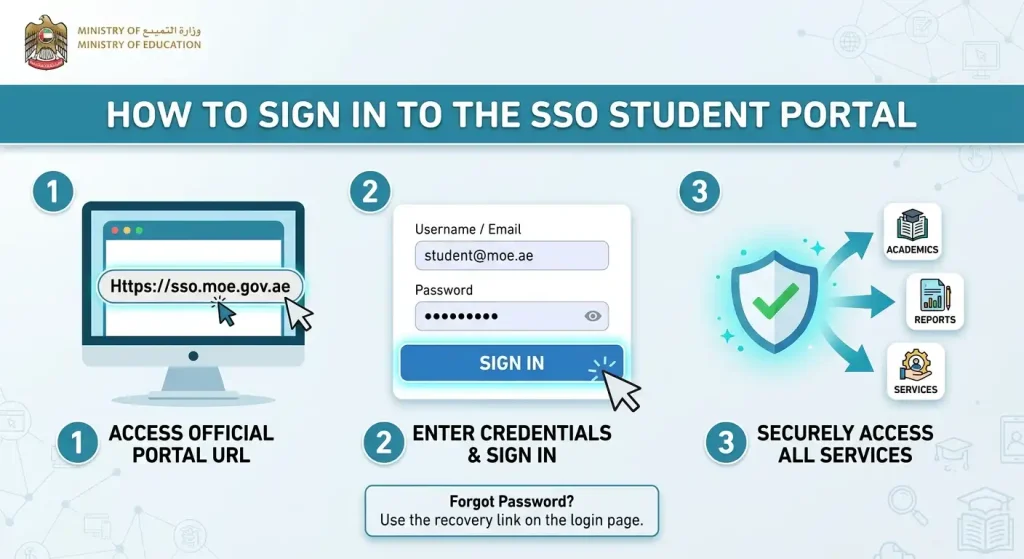
Step 1: Visit the Official MOE SSO Page
Start from the Ministry’s official SSO login address:
Open the Official MOE SSO Login
Take care when searching for the login page. Unofficial websites can look similar to government portals, so check the domain before entering your credentials.

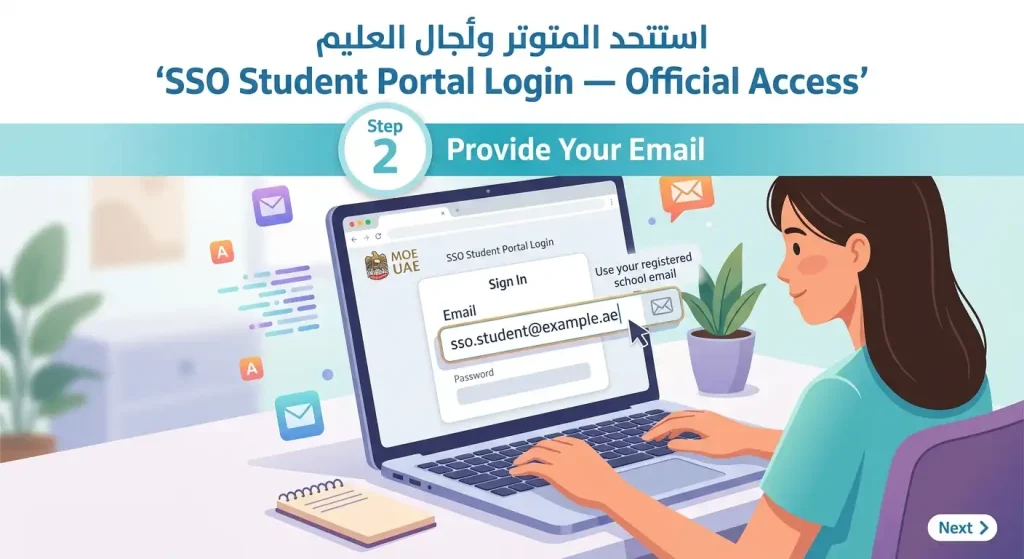
Step 2: Provide Your Email
Enter the email address linked to your MOE account in the appropriate field. Review it before proceeding, as an incorrectly entered address can prevent successful authentication.
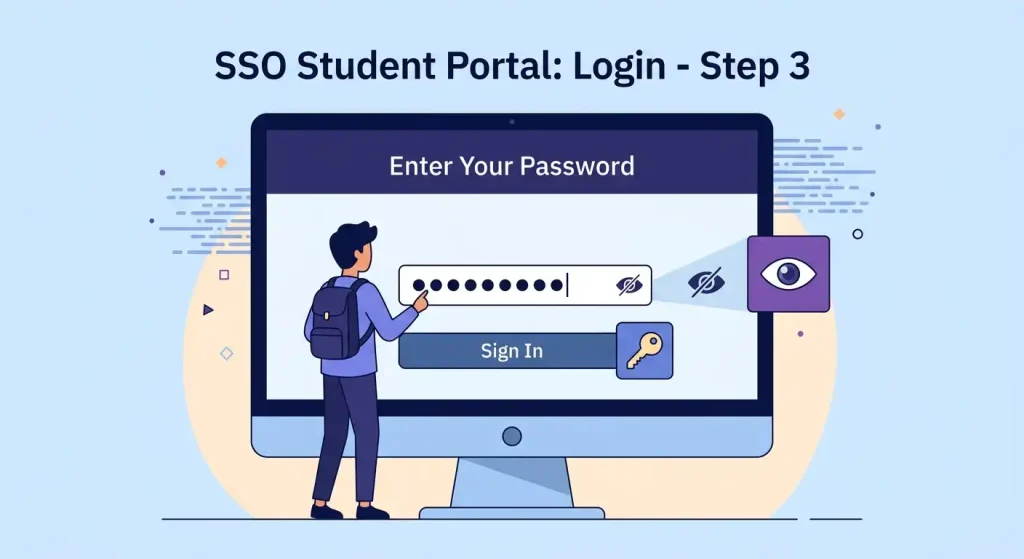
Step 3: Enter Your Password
Type your current MOE account password into the password field. If you are accessing your account from a shared or public computer, avoid storing the password in the browser.
If you cannot remember your password, use the Forgot Password? option available on the login page.
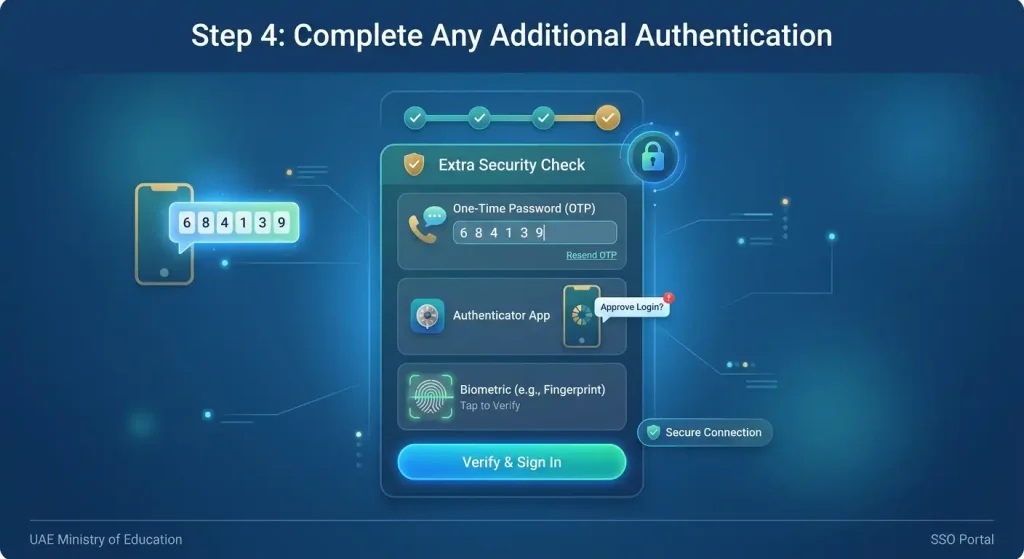
Step 4: Complete Any Additional Authentication
Some MOE services may require another verification stage after the initial login. If you are redirected to UAE PASS, follow the authentication instructions displayed by the official service or within the UAE PASS application.
The exact verification process can vary depending on the service you are trying to access.
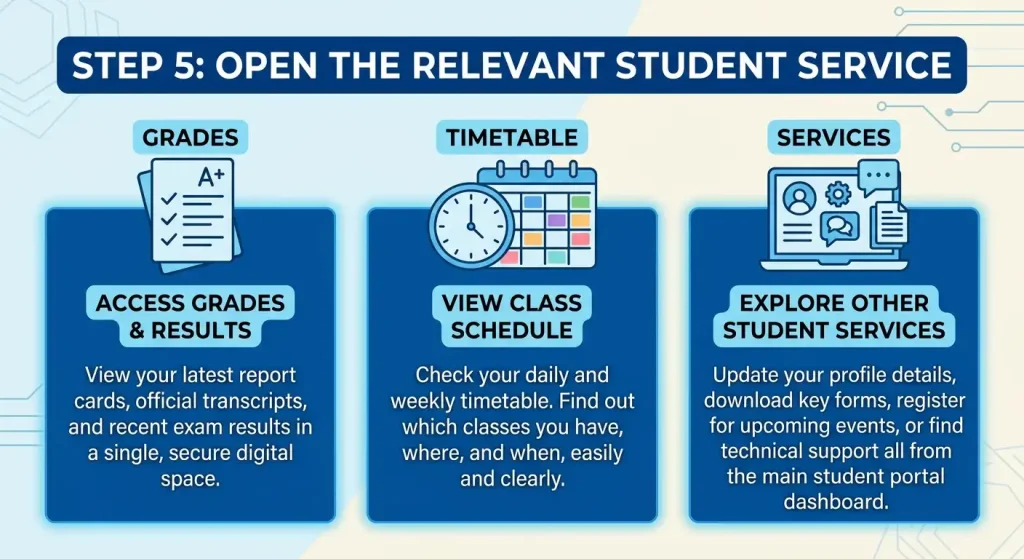
Step 5: Open the Relevant Student Service
Once authentication is successful, you should be taken to the MOE service or dashboard connected to your account. The services and options displayed after login depend on your account type, authorisation and the particular MOE platform being used.
Tip: If you cannot see the student service you expected, check whether your account has the required permission or whether that service operates through a separate MOE platform.
Login with UAE PASS / Digital Identity
UAE PASS serves as the UAE’s unified digital identity for citizens, residents and visitors when accessing supported government and other digital services. For MOE services that offer UAE PASS authentication, users can choose the UAE PASS option and complete the identity verification process through the digital identity system.
The exact sign-in steps can vary between Ministry services, so follow the instructions displayed on the official MOE page when you are redirected to UAE PASS.
What If UAE PASS Is Not Activated?
If your UAE PASS account is not yet activated, complete the required setup through the official digital identity service before attempting to use it for MOE authentication. Never share your UAE PASS login details with another person or enter them on an unofficial website.
Where an MOE service provides an alternative authentication method, you may use that option instead.
Creating or Activating an MOE Student Account
The account registration process depends on the particular MOE service. In some cases, an account may already be associated with a student through an educational institution or existing Ministry records.
Before attempting to create another account, check whether you already have an existing MOE account. If you need to register or activate one, use the instructions provided by the relevant official service.
A typical process may involve:
- Check for an existing account before registering again.
- Verify your registered information and make sure it is accurate.
- Follow the official registration or activation instructions for the service.
- Complete any required verification during the process.
- Set or confirm your login credentials when requested.
- Return to the official student portal login page and try signing in.
If your first login attempt fails, creating another account is not necessarily the solution. Check your password, account activation status and the specific MOE service you are attempting to access.
Forgot Your SSO Student Portal Password?
A forgotten password can usually be addressed through the Forgot Password? option on the official MOE SSO login page. Use the recovery process rather than repeatedly entering incorrect credentials.
Password Recovery Steps
- Open the official MOE SSO login page.
- Select Forgot Password?
- Provide the information requested by the recovery system.
- Complete any required verification.
- Follow the password-reset instructions provided.
- Create a new secure password if the system asks you to do so.
- Return to the SSO login page and try signing in with the updated credentials.
If the password recovery process does not resolve the problem, use the official MOE support channels rather than repeatedly attempting random passwords or sharing your account details with someone else.
SSO Student Portal Login Not Working
A failed student portal login can happen for several reasons and does not necessarily indicate that an account has been blocked. Start by identifying whether the problem is related to your credentials, account activation, UAE PASS, browser settings or a temporary service issue.
Common SSO Login Problems
Incorrect email or password: Check both fields carefully. Make sure Caps Lock is off and that you are using the email linked to the correct MOE account.
Forgotten password: Use the official password-recovery option rather than repeatedly trying different passwords.
Account not activated: If your account has not been activated correctly, normal sign-in may not work. Follow the activation instructions provided for the relevant MOE service.
UAE PASS authentication failure: Confirm that your UAE PASS account is active and follow the authentication instructions displayed during sign-in.
Browser or cache issues: Outdated cookies or cached files can interfere with login pages. Clearing the browser cache or opening the service in a private/incognito window may help.
Temporary MOE service problem: Maintenance or technical faults can sometimes make an online service unavailable. If your credentials are correct but access still fails, try again later.
Ways to Fix SSO Student Portal Login Errors
Before contacting support, work through the following checks:
- Confirm that you are on the official MOE website.
- Recheck your email address and password.
- Use Forgot Password? if you cannot remember your credentials.
- Clear your browser cache and cookies.
- Try another supported browser.
- Check that your internet connection is stable.
- Make sure UAE PASS is activated when it is required.
- Restart your browser and attempt the login again.
- Check whether the MOE service may be temporarily unavailable.
- Contact official MOE support if the issue continues.
The supplied source information lists 800 51115 and [email protected] as official contact details shown on relevant MOE service pages.
What Services Can Students Access Through the MOE Portal?
The services visible after authentication depend on the user’s account, permissions and the particular MOE platform being used. Potential services can include:
- Student services
- Education-related services
- Examination services
- Student information and records
- Registration services
- Other authorised Ministry digital services
For example, the supplied material notes that the MOE’s EmSAT service uses digital identity authentication and directs students to the student platform for activities such as registration and test scheduling.
This is why student portal should not necessarily be understood as one single dashboard containing every Ministry education service. Different services may have their own platforms and authentication arrangements.
SSO Student Portal vs MOE Student Services
Although SSO portal and student portal are closely connected, they serve different purposes.
| Feature | SSO Portal | MOE Student Services |
|---|---|---|
| Main purpose | Authentication and access | Education-related services |
| Login | MOE account or supported digital identity | Depends on the individual service |
| Main users | Authorised MOE users | Students and other eligible users |
| Dashboard | Determined by the connected service | Determined by the selected service |
| UAE PASS | Available on supported services | Available where provided |
If you searched for student portal MOE gov ae, identify the specific education service you need before attempting to sign in. This can prevent confusion between the Ministry’s authentication page and an individual student service.
Is the SSO Student Portal Official?
The SSO address supplied for this guide uses the sso.moe.gov.ae domain, while Ministry services also operate through official moe.gov.ae domains. Before entering any credentials, check the website address in your browser.
Be cautious of websites that:
- Use misspelled or unusual MOE domain names
- Request unnecessary personal information
- Promise faster access through an unofficial third party
- Ask for your UAE PASS password
- Do not use an official UAE government domain
For safer access, start from the official Ministry website or use a verified link to the relevant MOE service.
UAE MOE Student Portal Security Tips
Protecting your account is particularly important when a portal contains personal or education-related information.
Keep your password private. Do not share it with friends, agents or anyone claiming to provide account assistance.
Use the official website. Enter credentials only on a genuine MOE or authorised government service.
Protect your UAE PASS account. Never approve a UAE PASS authentication request that you did not initiate yourself.
Be cautious on shared devices. Avoid saving passwords when using a school, library or other shared computer.
Log out after use. Always sign out when accessing your account from a public or shared device.
FAQs
Final Thoughts
The SSO Student Portal Login provides a convenient way for students and authorised education users to access supported UAE Ministry of Education digital services through a central authentication system. Whether you need the student portal login, MOE SSO access, password recovery, account activation, or UAE PASS authentication, always use the official MOE website and verify the domain before entering your credentials. If you experience login problems, check your account details, password, browser settings, and UAE PASS status before contacting official MOE support. Keeping your login information private and using only trusted government portals will help you access your education services safely and securely.