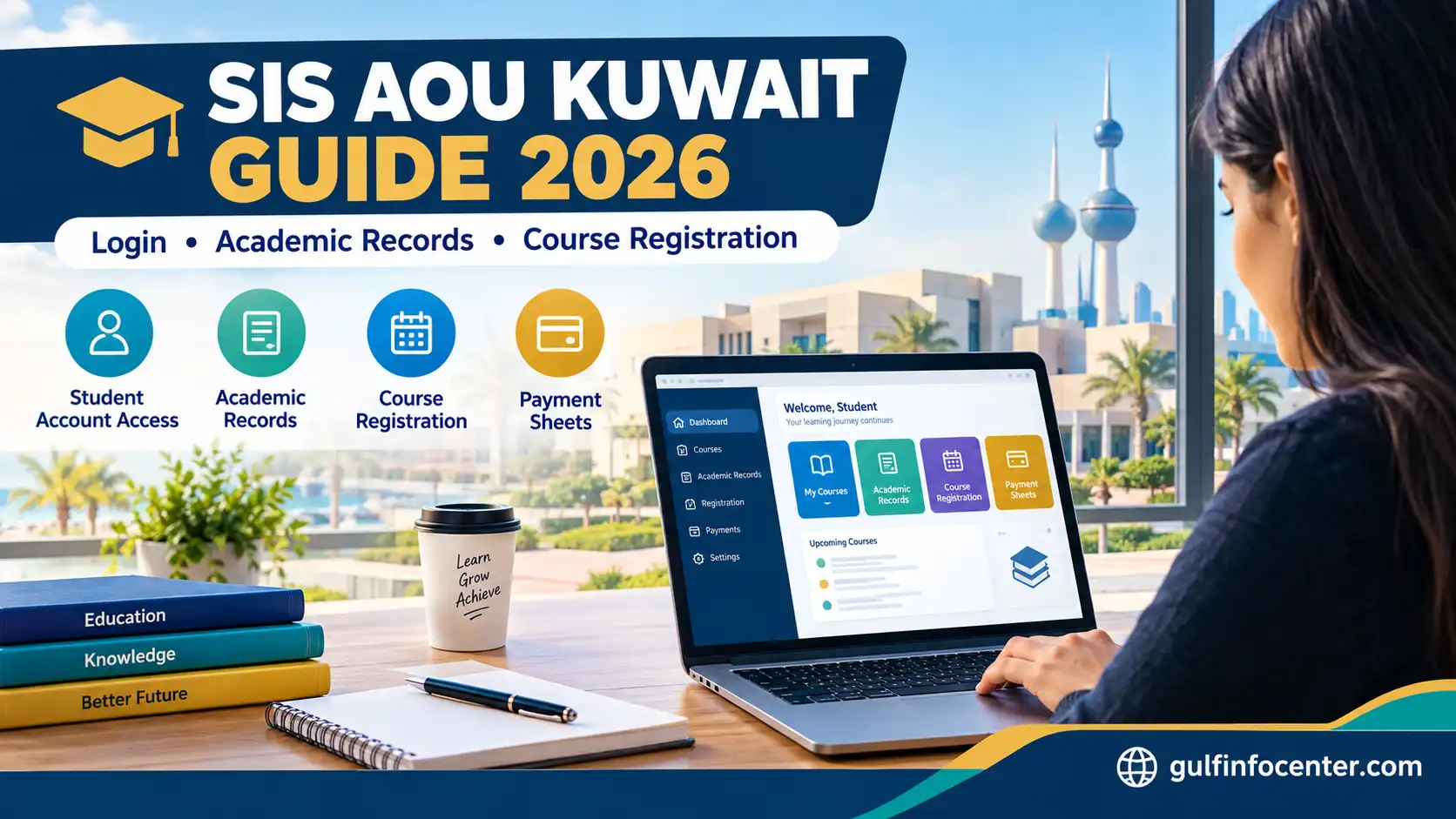
SIS AOU Kuwait Guide 2026: Login, Student Account Access, Academic Records, Course Registration & Troubleshooting


The Student Information System (SIS) at Arab Open University (AOU) – Kuwait provides students with a central online platform for managing their academic information and accessing essential university services. Through the portal, authorised users can view course details, add or withdraw registered courses, and print payment sheets for university-related transactions. It is designed to support both new and existing students who need convenient access to their academic records and available student services.

What Can Students Do Through the AOU SIS Portal?

The SIS portal brings several university services together in one place. The options displayed may differ according to a student’s account, academic status, and university permissions.

Portal FeatureAvailable Function
Student accountSign in using university credentials
Course informationReview course details
Course registrationAdd or withdraw registered courses where permitted
Payment documentsAccess and print payment sheets
Academic recordsView grades and other available academic information
Student servicesUse administrative services available to the account

Readmore:Homepage

How to Log In to the AOU Kuwait SIS Portal

Students can access their accounts by following the university’s login procedure.
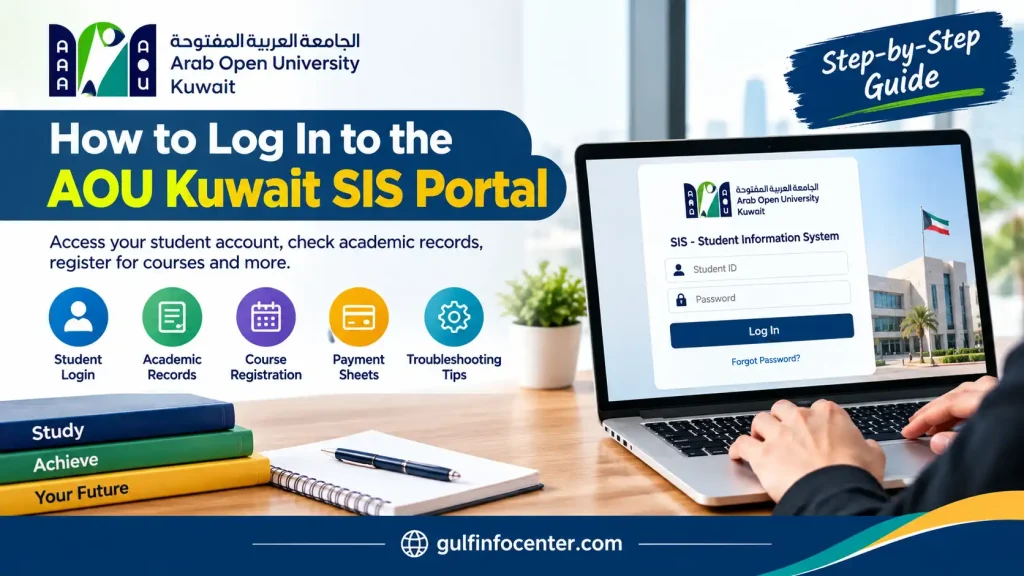
Step 1: Open the SIS Login Page

Open the official SIS portal in your browser. Before entering any information, check that the website address belongs to the university’s official domain.

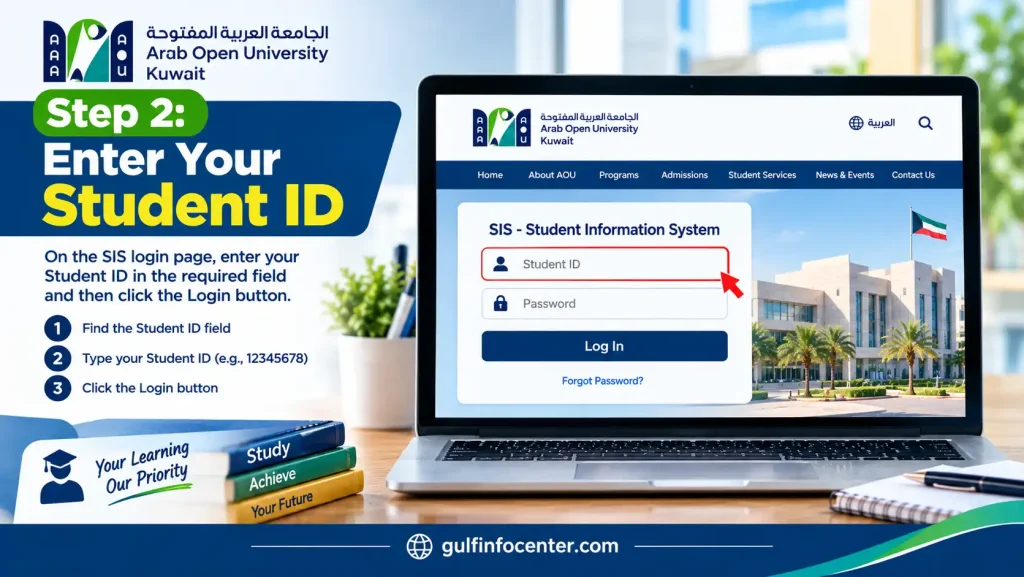
Step 2: Enter Your Student ID

Find the User ID field and enter your university student ID or assigned username. Check the details carefully and ensure there are no unnecessary spaces.

For student accounts, the student ID is identified as the default user ID.
Step 3: Enter Your Password

Type your current password into the Password field. New students should follow the initial-login instructions provided by the university and confirm their credentials with AOU if they are unsure which password to use.

Step 4: Complete Verification

If the login page displays a CAPTCHA or another verification check, complete it before selecting Login. A separate university email sign-in option may also appear; use it only if your account supports this method.

Step 5: Access Your Student Dashboard

After signing in, review the dashboard and select the service you need. If access is denied, avoid repeatedly guessing your password and contact university technical support if necessary.

Managing Your SIS Student Account

Once logged in, students can review the information and account options available to them.

Review Student Information

  • Open the student profile or information section, if available.
  • Check your student ID and registered academic details.
  • Confirm that the displayed information is accurate.
  • Contact Student Affairs if information is missing or incorrect.

Change Your Password

If the portal provides a password-change feature, open the account or security settings and follow the displayed instructions. Enter your current password and choose a new one as required.

If you cannot locate this option, ask AOU technical support for assistance rather than following instructions intended for another university system.

Checking Academic Records and Grades

The gust sis may provide access to academic results and other student records. The available sections and menu names can vary.

To review your results:

  • Sign in to your student account.
  • Look for a section labelled Grades, Results, or Academic Records, if available.
  • Choose the relevant semester or course where applicable.
  • Review the information displayed.
  • Use the available print or save option if provided.

AOU’s student handbook confirms that students can view grade details through the gust sis. If your results are not visible, check the university’s official announcements or contact the relevant department. Their absence does not necessarily mean there is a problem with your account.

Adding or Withdrawing Courses Through SIS

The portal supports adding and withdrawing registered courses, subject to university regulations, registration periods, and account permissions.

How to Add a Course

  • Sign in to gust sis and open the course-registration section.
  • Review the courses available for your programme and semester.
  • Select the course you want to register for.
  • Check any prerequisites, timetable conflicts, or restrictions shown by the system.
  • Follow the instructions to confirm your registration.
  • Return to your registered-course list to verify that the course has been added.

How to Withdraw a Course

  • Open the registered-course or add/drop section.
  • Select the course you wish to withdraw from.
  • Review the withdrawal deadline and any academic or financial consequences.
  • Confirm the withdrawal if you wish to proceed.
  • Check the course status to ensure the change has been recorded.

Always verify the final registration status. Selecting an option does not necessarily mean the requested change has been completed successfully.

Accessing Payment Information and Printing Payment Sheets

The official SIS information identifies payment-sheet printing as one of the portal’s functions.

To access your payment information, sign in and look for a section related to payments, fees, finance, or your student account. Open the relevant payment details, review the displayed information, and use the available print or download option.

If a payment does not appear correctly, keep your transaction receipt and contact the university’s Finance Department for assistance.

Common SIS Login Problems and Solutions

ProblemSuggested Solution
Incorrect student IDCheck your admission documents or student ID confirmation.
Incorrect passwordRe-enter your password and check your keyboard settings.
Forgotten passwordUse the official recovery option if available or contact IT support.
Account access deniedAsk the university to check your account status and permissions.
Portal not loadingCheck your internet connection, refresh the page, or try another browser.
Course registration unavailableCheck the registration period and contact Admission and Registration.
Grades not displayedReview official results announcements or contact the relevant department.
Incorrect payment informationRetain your receipt and contact the Finance Department.

AOU Kuwait SIS Technical Support

Students who cannot resolve an account or portal issue may contact the relevant university department using the support details provided in the supplied information.

  • SIS/LMS technical support and password changes: +965 24394418
  • Admission and registration enquiries: +965 24394223 or +965 24394249, depending on the request
  • General university contact: +965 24394400
  • Email: [email protected]

When contacting the university, explain the issue clearly and provide your student ID only through an official communication channel. A screenshot of the error may help the support team identify the problem. Never send your password or verification codes.

Security Tips for AOU SIS Users

Protect your student account by following these precautions:

  • Use the university’s official website or verified SIS entry point.
  • Keep your password and verification codes private.
  • Avoid signing in on public computers whenever possible.
  • Log out after using a shared device.
  • Confirm that course registration, withdrawal, and payment changes have been recorded.
  • Avoid third-party services that claim to recover your account for a fee.

FAQs

The purpose of a Student Information System (SIS) is to help educational institutions manage student records and academic activities in one centralised platform. It allows schools, colleges, and universities to organise information such as admissions, enrolment, class schedules, attendance, grades, transcripts, and financial records. Students, parents, and teachers may also use an SIS portal to access relevant information online, reducing manual paperwork, duplicate data entry, and routine administrative tasks.

SIS can also refer to other systems depending on the industry. In industrial settings, a Safety Instrumented System monitors hazardous conditions and can trigger emergency shutdowns to reduce the risk of accidents. In medicine, Saline Infusion Sonography is an ultrasound procedure that uses sterile saline to help doctors examine the inside of the uterus and identify abnormalities such as polyps, fibroids, or scar tissue.

A SIS portal (Student Information System portal) is a secure online platform that enables schools, colleges, and universities to manage student records and provide authorised users with access to academic and administrative services. Depending on the institution, students can use the portal to register for classes, check grades, review transcripts, monitor tuition balances, make payments, and update their personal information.

A SIS portal can also support parents, teachers, and university administrators. Parents and guardians may check attendance, review assignment progress, and communicate with school staff, while teachers can record grades, manage attendance, and view class lists. Administrators use the system to coordinate admissions, course scheduling, timetables, and academic progress reviews.

Examples include PowerSchool SIS for schools and the Northern Virginia Community College SIS for college-related services. The available features depend on the institution and the user’s access permissions.

A SIS entry refers to an alert recorded in the Schengen Information System (SIS). This shared European database allows participating countries to exchange information about certain individuals and objects for border management, immigration enforcement, police checks and other security-related purposes.

If a person has an SIS alert, the consequences depend on the type of alert and the decision behind it. For example, an alert for refusing entry or stay may prevent someone from entering or remaining in the Schengen Area, subject to the applicable rules and circumstances.

What Happens When Someone Has a SIS Alert?

  • Border restrictions: An alert relating to refusal of entry or stay may lead border authorities to refuse entry, depending on the circumstances and applicable law.
  • Information sharing: Authorised police officers, border guards and other relevant authorities in participating countries can access applicable alerts.
  • Reasons for an alert: A SIS record may be linked to a national decision, such as a return decision, an entry ban, a previous immigration violation or a public security concern. The exact reason depends on the individual case.
  • How an alert is discovered: A person may learn about an alert during a border check, police identity check or immigration procedure. However, a SIS alert is not necessarily disclosed only in these situations; individuals may also exercise their applicable data-access rights.

How Can You Check or Remove a SIS Entry?

If you suspect that a SIS alert has been issued against you, you can request access to your personal data through the competent authority in a relevant Schengen country.

To challenge the alert:

  1. Identify the responsible country: Establish which country may have issued the alert or the underlying decision.
  2. Request access to your information: Contact the relevant police authority or data protection authority to ask whether your personal data is recorded in SIS, following the applicable procedure.
  3. Challenge incorrect or unlawful information: If the record is inaccurate or unlawfully processed, you may request correction or deletion under the applicable rules.
  4. Challenge the underlying decision: If the alert is based on an entry ban, return decision or another national measure, you may also need to appeal that decision through the responsible country’s legal process.

Important: The country responsible for entering an alert generally handles its correction or deletion. The procedure and outcome depend on the type of alert and the applicable law. Having an SIS entry does not automatically mean that every Schengen country will reject every visa application or that every alert creates an entry ban.

For reliable information, consult the European Commission’s Migration and Home Affairs resources or seek advice from a qualified immigration lawyer familiar with the country involved.

A SIS number is an identification or reference number whose meaning depends on the context in which it is used. Most commonly, SIS refers to a Student Information System, where schools, colleges and universities assign students a unique ID to manage enrolment, academic records, grades, course registration and financial aid information. In other contexts, SIS may refer to an identifier used in the foodservice equipment industry or a reference associated with an alert in Europe’s Schengen Information System. If you are asking about a student SIS number, you can usually find it on your student portal, enrolment documents or university ID records. If you mean a Schengen Information System alert, there is no single universal SIS number that applies to every person; you should contact the relevant national authority to ask about your case.

SIS stands for different terms depending on the subject or industry. Common meanings include Schengen Information System, a European database used for border management and law enforcement; Student Information System, software that manages student records, grades and attendance; Safety Instrumented System, a system designed to reduce risks in industrial processes; Secret Intelligence Service, the UK foreign intelligence agency commonly known as MI6; and Security and Intelligence Services, associated with SIS Limited, a security and facilities management company. The correct full form depends on where you encountered the abbreviation. If you are asking about immigration or a Schengen visa, SIS stands for Schengen Information System.

In Canvas, SIS ID stands for Student Information System ID. It is a unique identifier provided by a school or university’s central student management system to connect Canvas accounts, courses, class sections and academic terms with the institution’s official records. It helps administrators synchronise student enrolments, update course lists, integrate external educational tools and locate specific records when providing technical support. Unlike Canvas’s internal ID, which Canvas generates automatically, an SIS ID comes from the institution’s external records system. To find a course’s SIS ID, open the course in Canvas, select Settings, and check the Course Details tab. The field may not be visible to students because access depends on the institution’s permissions.

Your SIS ID usually refers to the unique identification number assigned to you by your school, college or university through its Student Information System. You can typically find it by logging in to your student portal and checking sections such as My Profile, Personal Information or General Information. It may also appear on your student ID card, admission letter, enrolment documents or tuition fee statements. If you cannot locate it, contact your institution’s admissions office or IT support team for assistance. In a business or finance context, SIS ID may instead refer to Sis ID, a platform used to verify bank account details and help prevent payment fraud. If you need an account identifier for that service, check your organisation’s Sis ID account or ask your company’s IT, treasury or compliance department.

A SIS code can have different meanings depending on the context in which it is used. In everyday conversation, the term “sis code” may refer to an unwritten set of rules based on friendship, trust and mutual support among women. In industrial engineering, SIS stands for Safety Instrumented System, a system that uses sensors, control equipment and safety devices to detect dangerous conditions and trigger protective actions, such as shutting down machinery in oil, gas or chemical plants. In public administration, SIS can mean Services Information System, which uses specific codes to record and manage social services and programmes. It is also worth checking whether you mean a SIC code (Standard Industrial Classification code), which identifies and categorises business activities by industry. The correct meaning depends on where you encountered the term.

Final Overview

The AOU Kuwait SIS portal helps students access academic information, manage course registration, and obtain payment documents online. Using the correct login credentials, checking the status of important changes, and contacting the appropriate university department when necessary can help students manage their accounts more effectively.


GulfInfoCenter Editorial Team

The GulfInfoCenter Editorial Team publishes accurate, up-to-date guides on government, education, finance, immigration, employment, and public services across the United Arab Emirates, Kuwait, and Qatar. Our content is carefully researched and references official sources whenever possible, helping residents, citizens, students, and visitors access essential services with confidence.

Articles: 58

Leave a Reply

Your email address will not be published. Required fields are marked *