
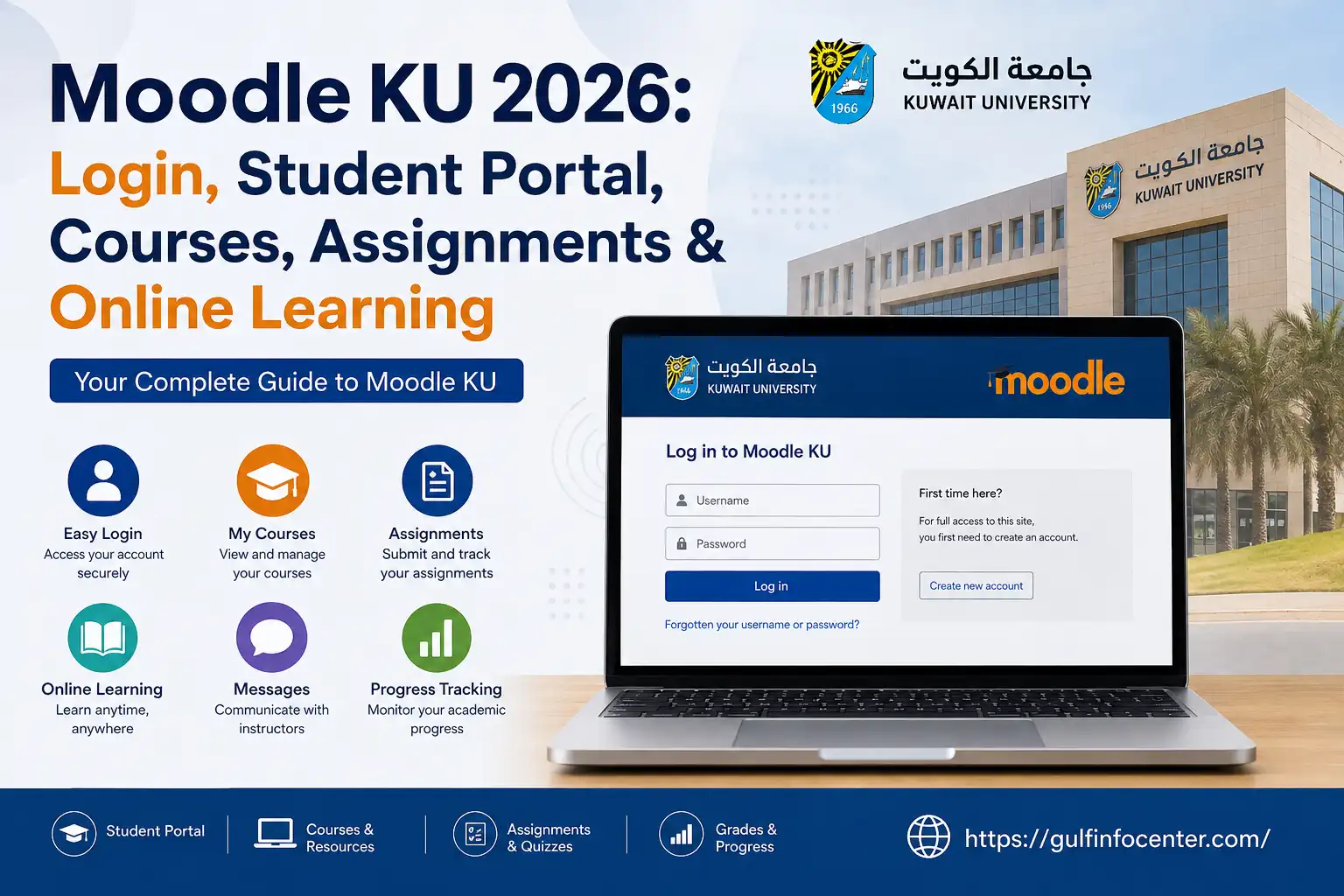

Moodle KU is Kuwait University’s online learning environment for students and faculty. It brings course content, assignments, quizzes, assessments, announcements and other digital learning activities into one place.
Kuwait University has been using e-learning systems since 2003, with Moodle serving as its current official e-learning platform. For students, the platform is particularly important because it provides access to enrolled courses and the materials supplied by instructors.
This updated guide covers the Moodle login process, KU SIS authentication, course access, learning materials, assignment submissions, online exams, Student Portal differences, password problems, MFA, mobile access and technical support.
Moodle at a Glance
| Item | Details |
|---|---|
| Platform | Moodle |
| University | Kuwait University |
| Main purpose | Online and blended learning |
| Login method | KU SIS / Kuwait University credentials |
| Main website | moodle.ku.edu.kw |
| Account | KU university account |
| Course access | Through the Moodle dashboard |
| Password recovery | KU Password Reset Service |
| Support | Moodle support and KU IT services |
What Can Students Do on Moodle?
Moodle is more than a place to download lecture notes. Depending on how a course has been configured, students may use it for:
- Course materials and lecture resources
- PDF files and presentations
- Video content
- Assignments and electronic submissions
- Quizzes and examinations
- Course announcements
- Discussion activities
- Progress tracking
- Assessments and grading activities
- Other digital learning resources
- Communication with instructors
Kuwait University describes Moodle as supporting course-content management, electronic assignment submission, online examinations, learner progress tracking, communication, reports and other academic functions.
Moodle KU Login: What You Need First
Before attempting to sign in, have your Kuwait University account details ready.
Login requirements
- An active Kuwait University student account
- Your KU-issued university email
- Your university account password
- A reliable internet connection
- An updated web browser
- Access to the official Moodle website
| Requirement | What to use |
|---|---|
| KU account | Active student account |
| University email | Your KU-issued KU email |
| Password | Your university account password |
| Browser | Chrome, Edge, Firefox or Safari |
| Connection | Stable internet |
| Moodle address | moodle.ku.edu.kw |
For newer students, the university email generally follows the S[Student ID]@ku.edu.kw format. The source also states that the same password is used for the university email and Student Registration System.
How to Sign In to Moodle KU
The Moodle login process is straightforward once your KU account is active.
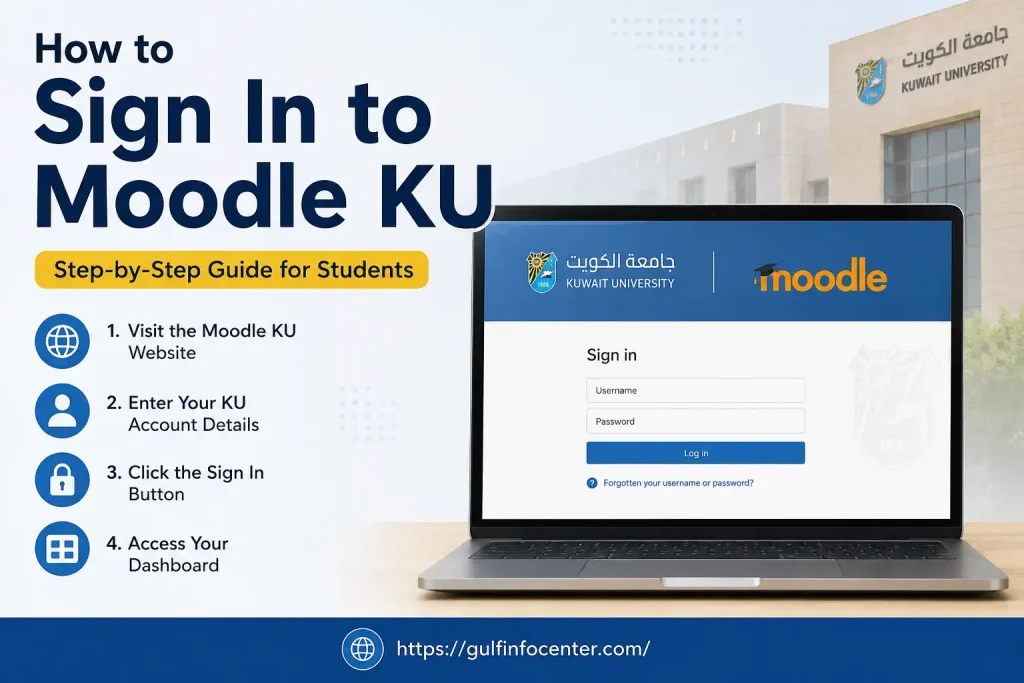
1. Go to Moodle KU
Open an up-to-date browser on your computer or mobile device and visit:
The Moodle login page should appear.
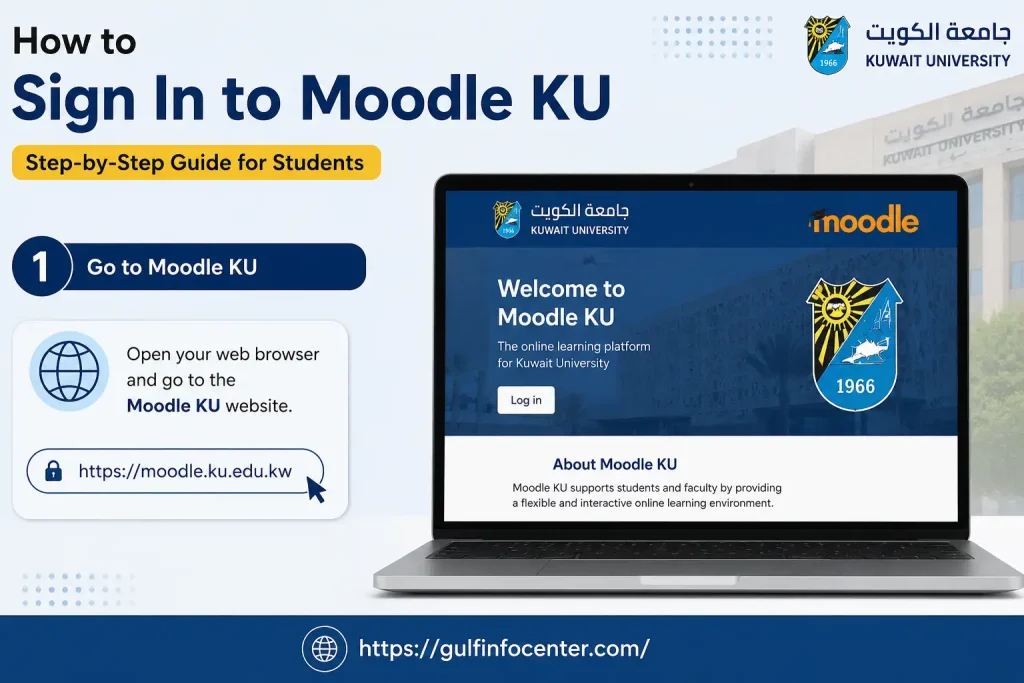
2. Choose “KU SIS”
Look for the KU SIS option on the Moodle login screen and select it.
According to the Kuwait University student Moodle guidance in the source material, this option takes students to the university authentication page.
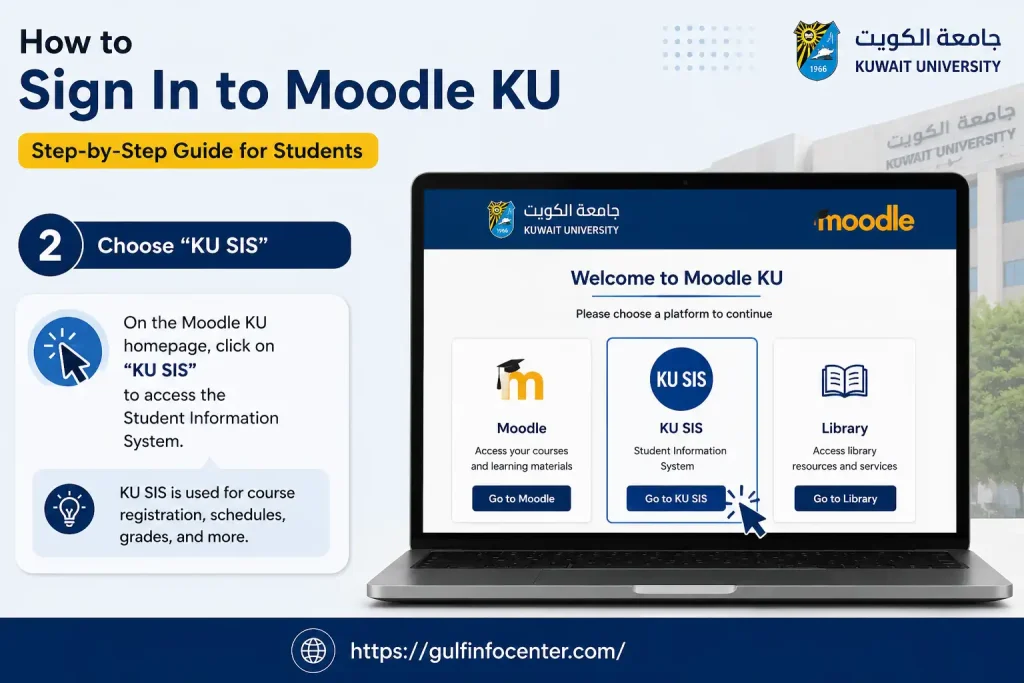
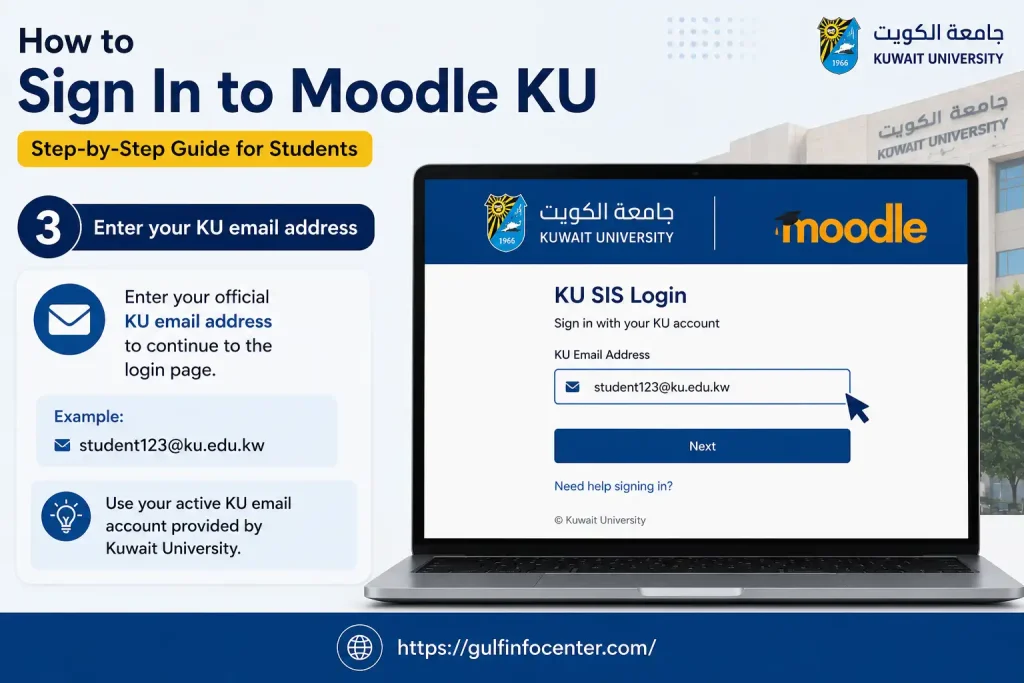
3. Enter your KU email address
Type your official Kuwait University email.
For applicable newer student accounts, the format is:
S[Student ID]@ku.edu.kw
For example:
If you are unsure of your exact university email address, confirm it through the Student Registration System rather than guessing.
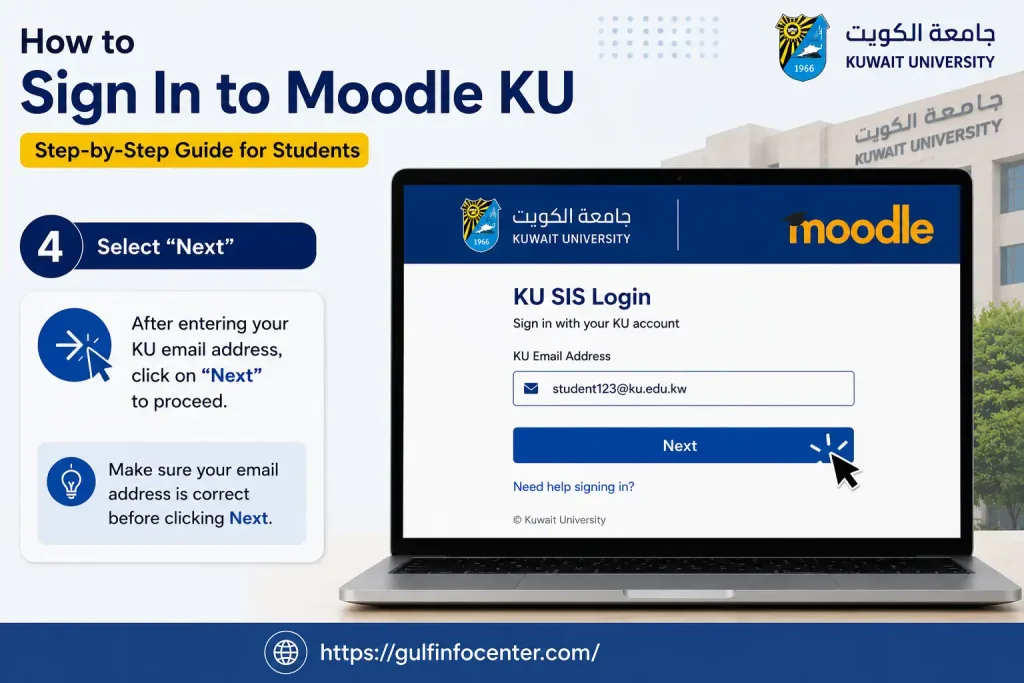
4. Select “Next”
After entering your university email, click Next.
The authentication system will then move to the password stage.
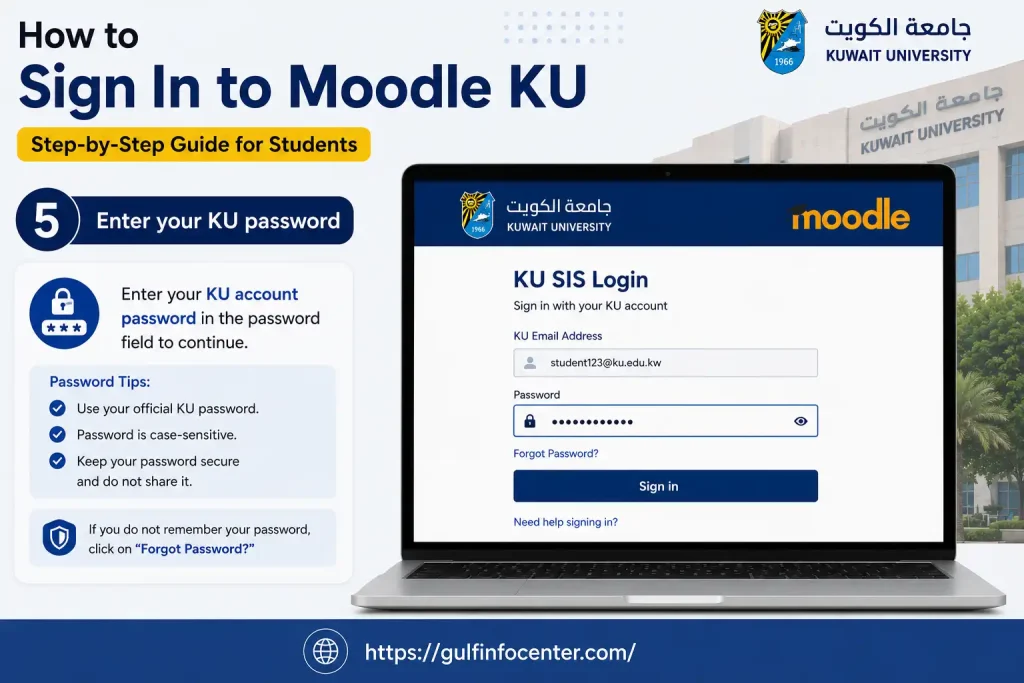
5. Enter your KU password
Enter the password associated with your Kuwait University account.
The university guidance states that the university email and Student Registration System use the same password.
6. Finish authentication
Complete the sign-in process and any additional authentication requested by the university.
If your account information is correct, Moodle should return you to the learning platform.
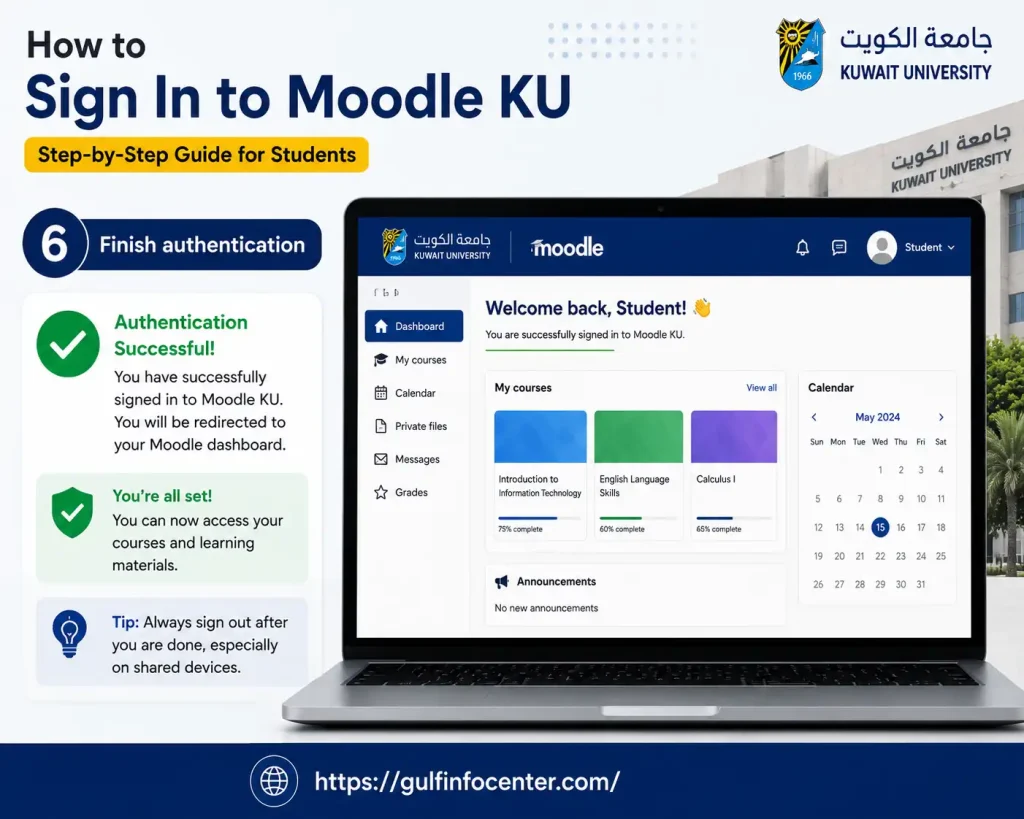
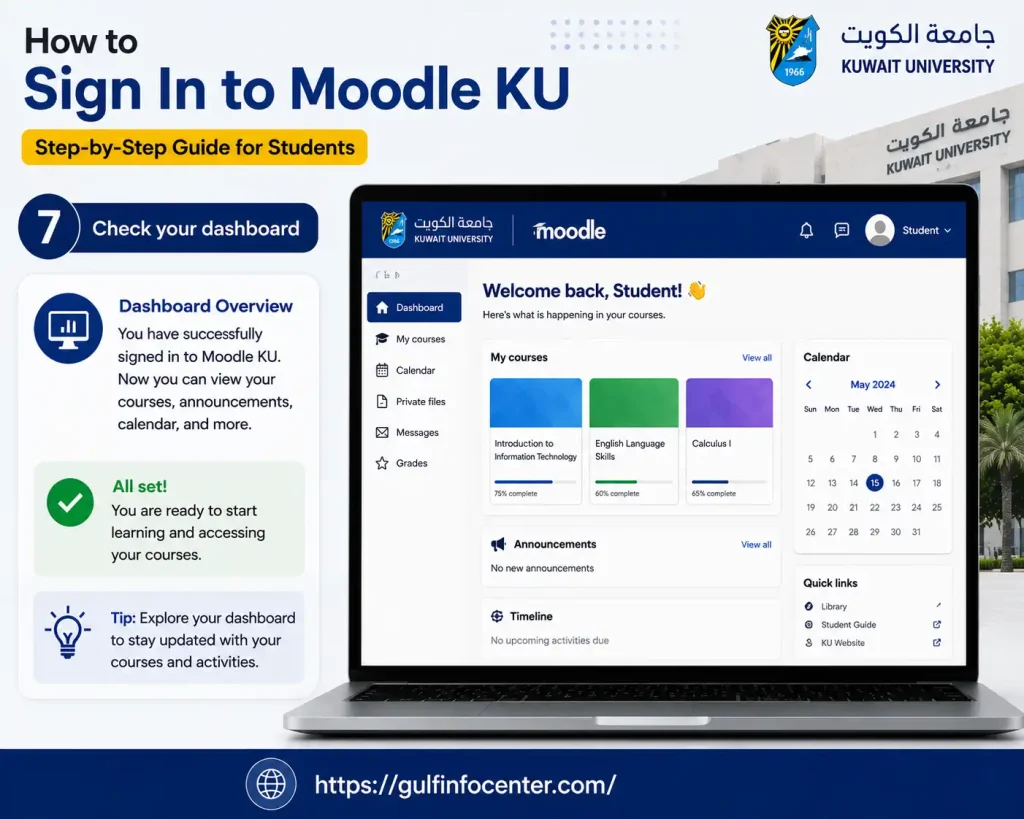
7. Check your dashboard
Once authentication succeeds, open your Moodle dashboard.
Your available courses should appear there when the relevant instructors have made them available.
Finding Your Courses in Moodle
Your Moodle dashboard is the main starting point for course-related activities.
Depending on the instructor’s setup, a course may contain:
- Course descriptions
- Lecture notes
- PDF documents
- Presentations
- Videos
- Assignments
- Quizzes
- Announcements
- Discussions
- Online tests
- Other academic resources
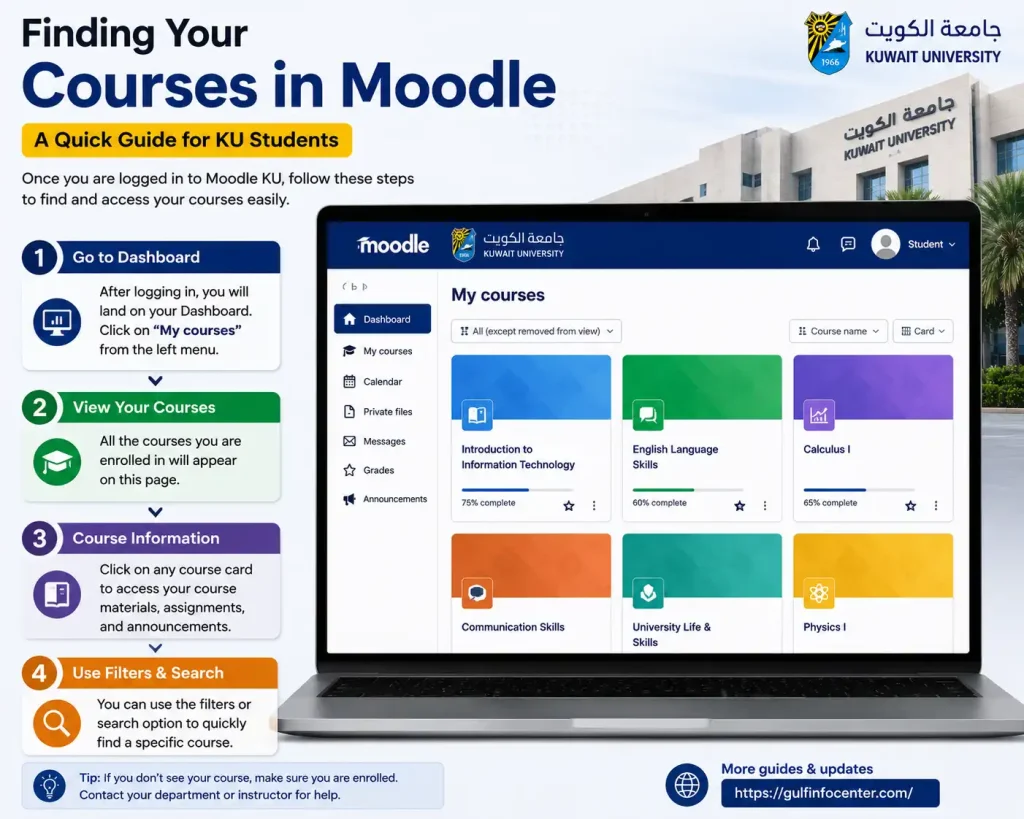
Open an enrolled course
- Sign in to.
- Go to your dashboard.
- Find the relevant course.
- Select the course title.
- Browse the available sections.
- Open the lecture, file or activity you need.
If you cannot find a course, don’t immediately assume that your registration is wrong. The source specifically notes that an instructor may not have activated the course yet.
Where to Find Moodle Course Materials
Course resources are normally organised inside the individual Moodle course.
An instructor may provide:
- Lecture slides
- PDF reading material
- Videos
- Reference documents
- Announcements
- Practice activities
- Other digital resources
To access them, open the relevant course from your dashboard and select the resource you want to view.
The exact layout can differ between courses because instructors control how their course content is organised.
Submitting an Assignment Through Moodle KU
Moodle supports electronic assignment submission, so students can upload their academic work directly through the relevant course.
A typical submission follows this pattern:
- Log in to Moodle.
- Enter the appropriate course.
- Locate the assignment.
- Read the instructor’s instructions.
- Check the deadline.
- Open the submission area.
- Upload the required file.
- Check that the correct file has been attached.
- Submit the work.
- Confirm that Moodle displays the expected submission status.
Don’t leave uploads until the last minute
An assignment can take longer to upload when the file is large or the internet connection is unstable. Browser problems can also interfere with the process.
After uploading, always check the submission status. Uploading a file does not necessarily mean that the assignment has been formally submitted.
Moodle Quizzes and Online Exams
Moodle can also be used for quizzes, assessments and online examinations.
Before an online assessment, check the requirements provided by your instructor. A sensible preparation checklist is:
- Confirm the exam date and time.
- Read all instructions.
- Test your Moodle login beforehand.
- Use a dependable internet connection.
- Update your browser.
- Check whether special examination software is required.
- Keep your KU account credentials available.
- Complete any required authentication setup.
Kuwait University also provides student guidance for Proctorio in connection with Moodle-based online examinations where applicable.
Tip: Don’t wait until the exam begins to discover that your password, browser or authentication method is not working.
Moodle KU vs Kuwait University Student Portal
One common source of confusion is the difference between Moodle and the university’s Student Registration System.
They are connected to the wider KU digital environment, but they serve different purposes.
| Kuwait University service | Main purpose |
|---|---|
| Moodle | Courses, learning materials, assignments and assessments |
| Student Registration System | Registration, schedules, grades and student information |
| University Email | Official university communication |
| Microsoft Teams | Live classes, meetings and collaboration |
| E-Resources | Academic journals, e-books and research resources |
Kuwait University’s student e-services information lists Moodle alongside the Student Registration System, E-Resources, the Academic Calendar, MFA and other student services.
The easiest way to remember the difference
Student Portal = administration and registration
Moodle = learning and course activities
Kuwait University Student Portal
The Kuwait University Student Registration System is separate from Moodle.
Students use the registration system for activities such as:
- Course registration
- Course schedules
- Student information
- Academic records
- Registration-related services
The source identifies the Kuwait University portal as:
The university’s student journey guidance also indicates that the Student Registration System is used to access schedules, grades and registration information.
So, if you need to register for a class or check your academic record, Moodle is generally not the system you are looking for.
Your KU University Email and Moodle
Your Kuwait University email plays an important role in accessing university services.
The source states that students should activate their university email before using Moodle and Microsoft Teams. It is also identified as an important gateway to KU systems and services.
New students
If you have recently joined Kuwait University:
- Confirm your university email.
- Activate the account.
- Make sure you can access the account.
- Then try signing in to Moodle.
Trying to troubleshoot Moodle before activating the university account can create unnecessary confusion.
Why Is My Course Missing From Moodle KU?
Seeing an empty dashboard or missing course does not automatically mean that something is wrong with your registration.
Possible explanations include:
- The instructor has not activated the course.
- Your enrolment has not yet synchronised with Moodle.
- You are signed in with the wrong KU account.
- Your course registration is still being processed.
- The course is temporarily hidden or unavailable.
- There is a delay in system synchronisation.
The source specifically advises students to contact the instructor when a course does not appear because the instructor may not have activated it yet.
What to check
Before contacting support, work through these checks:
First: Make sure you are using your official KU university email.
Next: Open the Student Registration System and confirm that you are enrolled.
Then: Log out of Moodle and sign in again.
Finally: If the course remains unavailable, contact the instructor.
Forgot Your Moodle KU Password?
Moodle uses your Kuwait University account credentials, so a forgotten KU password can prevent you from accessing the platform.
Kuwait University provides a dedicated password-reset service:
The student guidance in the source directs users to this service when they have forgotten or do not have their university password.
Before resetting your password
Check that:
- You are entering your KU university email.
- Your account is active.
- The password has been entered correctly.
- Caps Lock is not causing the problem.
- You have tried the official password-reset service.
Moodle KU MFA and Account Authentication
Kuwait University also uses Multi-Factor Authentication (MFA) to strengthen account security.
New students may be required to configure MFA before accessing university services. The current student guidance in the source states that the initial MFA setup should be completed using a personal computer.
If MFA is causing an access problem, use KU’s official IT or security support channels. Do not try to bypass university authentication.
Moodle KU Login Problems: Practical Troubleshooting
If your Moodle login isn’t working, check the following in order.
1. Verify the email address
Use your official @ku.edu.kw account.
A personal Gmail, Outlook or another private email address should not be used as a replacement for your KU account when signing in.
2. Check the password
Make sure you are using the password associated with your Kuwait University account.
3. Use the password-reset service
If you cannot remember your password, use the official KU password-reset service rather than repeatedly trying incorrect credentials.
4. Try another browser
Use an updated version of:
- Google Chrome
- Microsoft Edge
- Mozilla Firefox
- Safari
5. Clear cached browser data
Old cached information can occasionally interfere with authentication. Clearing browser cache and trying again may help.
6. Test your internet connection
A weak or unstable connection can interrupt the sign-in process.
7. Activate your university email
New students should make sure their KU email has been activated before attempting Moodle access.
8. Check whether the problem is actually your course
If you can log in successfully but a course is absent, the issue may be course availability rather than your login. Check your registration and contact the instructor if necessary.
Can You Use Moodle KU on a Phone?
Yes. Moodle can be accessed through a web browser on a computer, tablet or smartphone.
For a smoother experience:
- Keep your browser updated.
- Use a reliable Wi-Fi or mobile-data connection.
- Protect your KU credentials.
- Check Moodle regularly for announcements.
- Monitor assignment deadlines.
Kuwait University also provides a mobile app offering access to selected university information and services, including schedules and announcements.
Moodle and Microsoft Teams: Are They the Same?
No. Moodle and Microsoft Teams can form part of the same online learning environment, but their roles are different.
Moodle is mainly used for
- Course content
- Assignments
- Quizzes
- Assessments
- Course announcements
Microsoft Teams may be used for
- Live online lectures
- Office hours
- Group work
- Online meetings
- Collaboration
The source notes that Kuwait University’s student guidance recommends checking Moodle if a Teams class is not visible, since the instructor may still be preparing the Teams channel.
Moodle KU Technical Support
If you’ve tried the normal troubleshooting steps and still cannot access Moodle, Kuwait University provides dedicated support.
Moodle support email
The source also identifies WhatsApp 24983452 for emergency support under the relevant support arrangements. General technical assistance is available through Kuwait University’s IT self-service/support system.
When contacting support, explain the problem clearly and include useful details such as the service you are trying to access and the stage at which the problem occurs.
Official Kuwait University Online Resources
Keep these services separate because each one has a different purpose.
| Service | Official resource |
|---|---|
| Moodle | moodle.ku.edu.kw |
| Student Portal | portal.ku.edu.kw |
| Password Reset | mspwdreset.ku.edu.kw |
| Student E-Services | ku.edu.kw/student-portal-services |
| E-Learning Center | elc.ku.edu.kw/e-learning-system |
| IT Support | Kuwait University IT Support |
These resources are identified in the source material as the main KU services relevant to Moodle, student administration, password recovery, e-learning and technical support.
Moodle KU Login: Quick Version
If you only need the sign-in sequence, use this checklist:
- Open moodle.ku.edu.kw.
- Select KU SIS.
- Enter your KU university email.
- Click Next.
- Enter your university password.
- Complete MFA or additional authentication if requested.
- Wait for Moodle to load.
- Open your dashboard.
- Select your enrolled course.
- Access the available lectures, resources, assignments, quizzes or other activities.
This sequence follows the Moodle login flow described in the Kuwait University student guidance supplied with the source material.
ersity support. This can make troubleshooting much easier.
FAQs
Final Thoughts
Accessing Moodle is straightforward once your Kuwait University account is properly set up. Students can use their official KU credentials to sign in, check available courses, access online learning materials, and stay connected with their academic activities.
If you experience a login problem, forgotten-password issue, missing course, or MFA error, check your university account details first and use Kuwait University’s official support resources when needed. Keeping your KU email and password active will help ensure smooth access to Moodle and other online learning services.