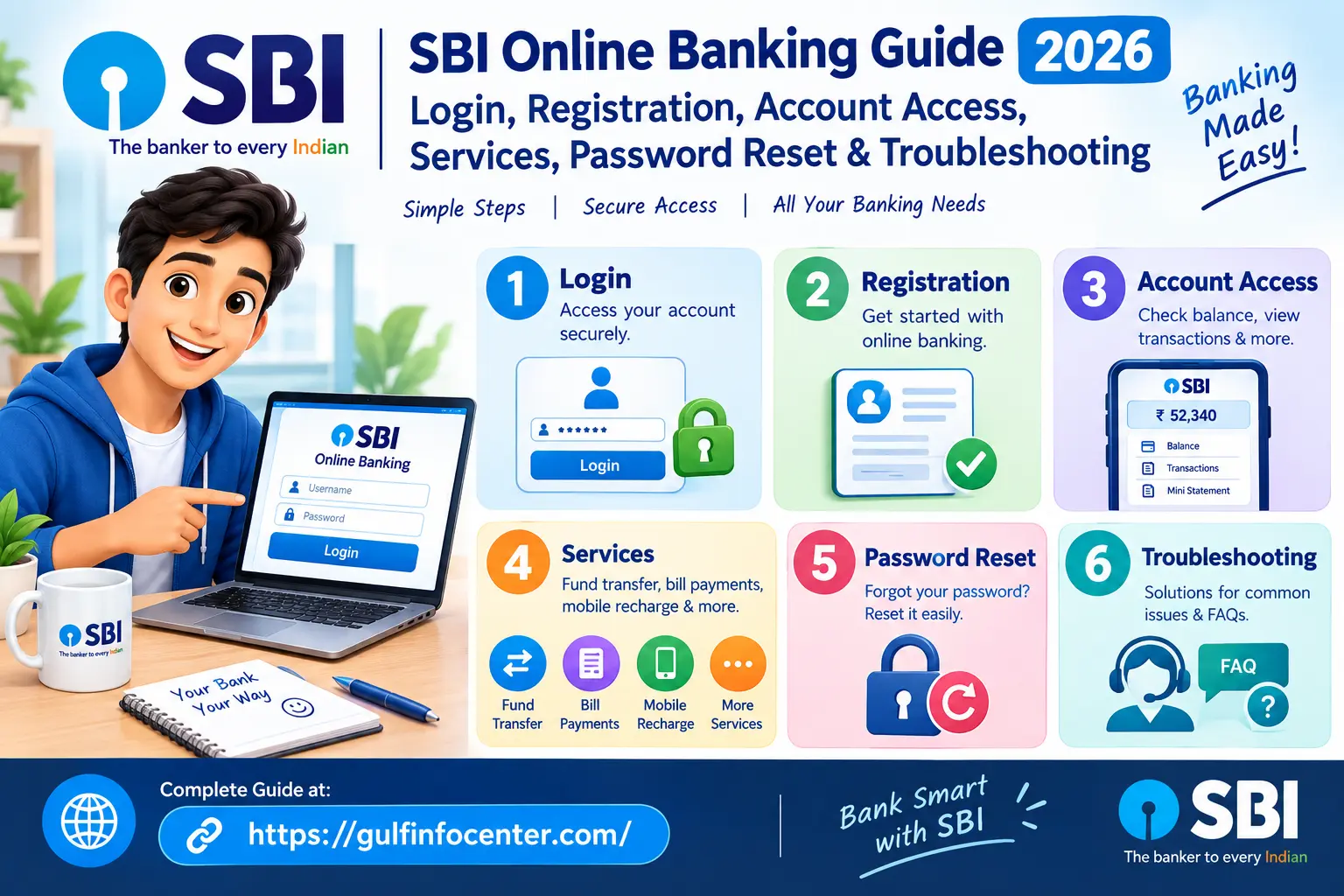

SBI Online Banking makes it easier for State Bank of India customers to manage their accounts anytime and from anywhere. Whether you want to check your account balance, transfer money, download a statement, pay bills, or access other banking services, SBI’s online banking platform provides convenient access without the need to visit a branch.
In this SBI Online Banking Guide 2026, we’ll explain everything you need to know about online banking, including SBI online banking registration, login, account access, available services, password reset, and common troubleshooting steps. This guide is designed to help both new and existing SBI customers understand the process and use online banking safely and efficiently.
Important: SBI may update its internet banking website, features, or service options from time to time. Always access online banking through the official SBI website and follow the instructions shown on your account.
Read Homepage
What Is SBI Online Banking?
SBI Online Banking is State Bank of India’s internet banking service for eligible retail customers. It lets customers handle a range of routine banking tasks online, reducing the need to visit an SBI branch for every transaction or request.
Through the service, customers can access their accounts, transfer funds, pay eligible bills, request a cheque book, make available tax payments, use supported investment services, and manage selected account and security settings.
SBI Online Banking Services at a Glance
| Service | What You Can Do |
|---|---|
| Account Access | Check accounts and available account information |
| Fund Transfers | Move money between eligible accounts |
| Inter-bank Transfers | Send funds to accounts held with other banks |
| Bill Payments | Pay supported utility and other bills |
| Cheque Book Requests | Submit a request for a new cheque book |
| Tax Payments | Use available online tax-payment facilities |
| Investment Services | Access supported SBI investment options |
| Profile Management | Update selected personal and security settings |
| Password Services | Change or recover supported login and profile passwords |
| Transaction History | Review available account activity and transaction records |
The exact services you can use may vary. Access can depend on your account type, registration status, and whether a particular banking facility has been enabled for your account.
How to Register for SBI Online Banking
Eligible SBI retail customers can register for internet banking through the online self-registration facility. Customers who have an SBI ATM/debit card can generally activate the service themselves online, while those without an eligible card may need to contact an SBI branch for activation.
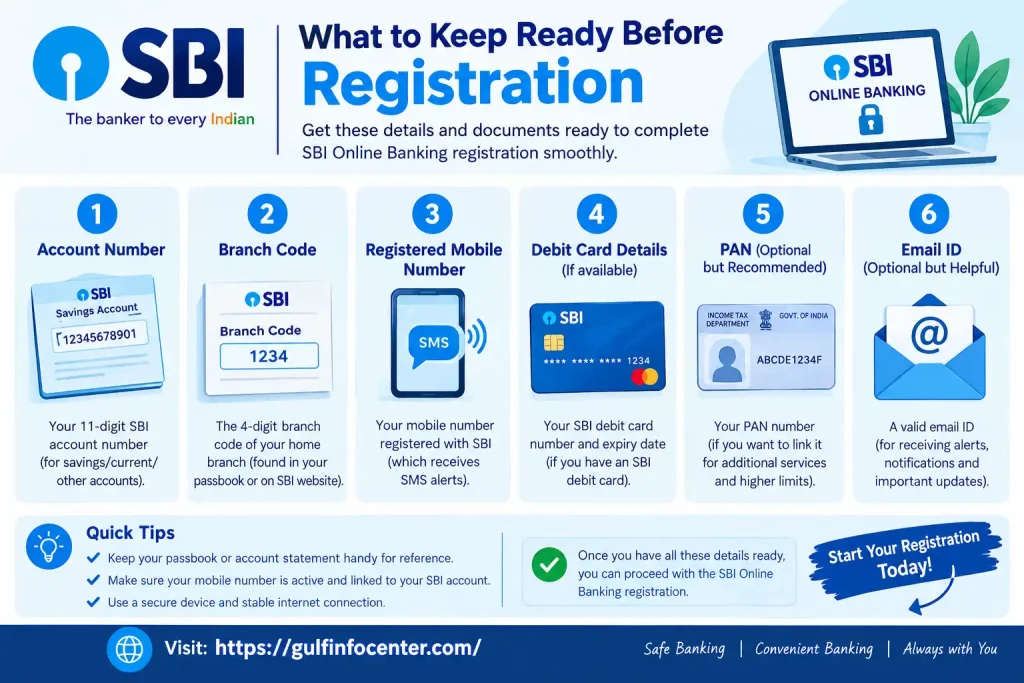
What to Keep Ready Before Registration
Having the required information available can make the registration process smoother. Depending on what the SBI registration screen asks for, you may need:
- SBI account details
- CIF or account information
- Registered mobile number
- SBI ATM/debit card, where applicable
- Card details required for online activation
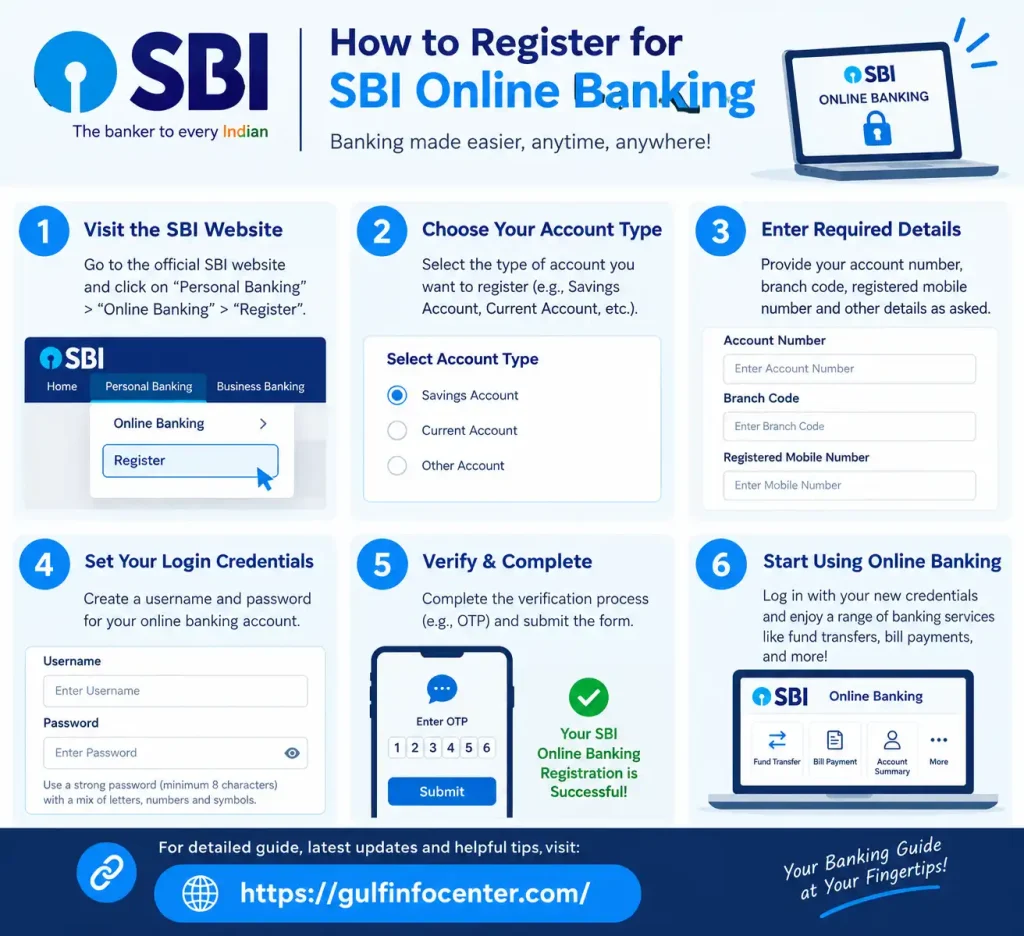
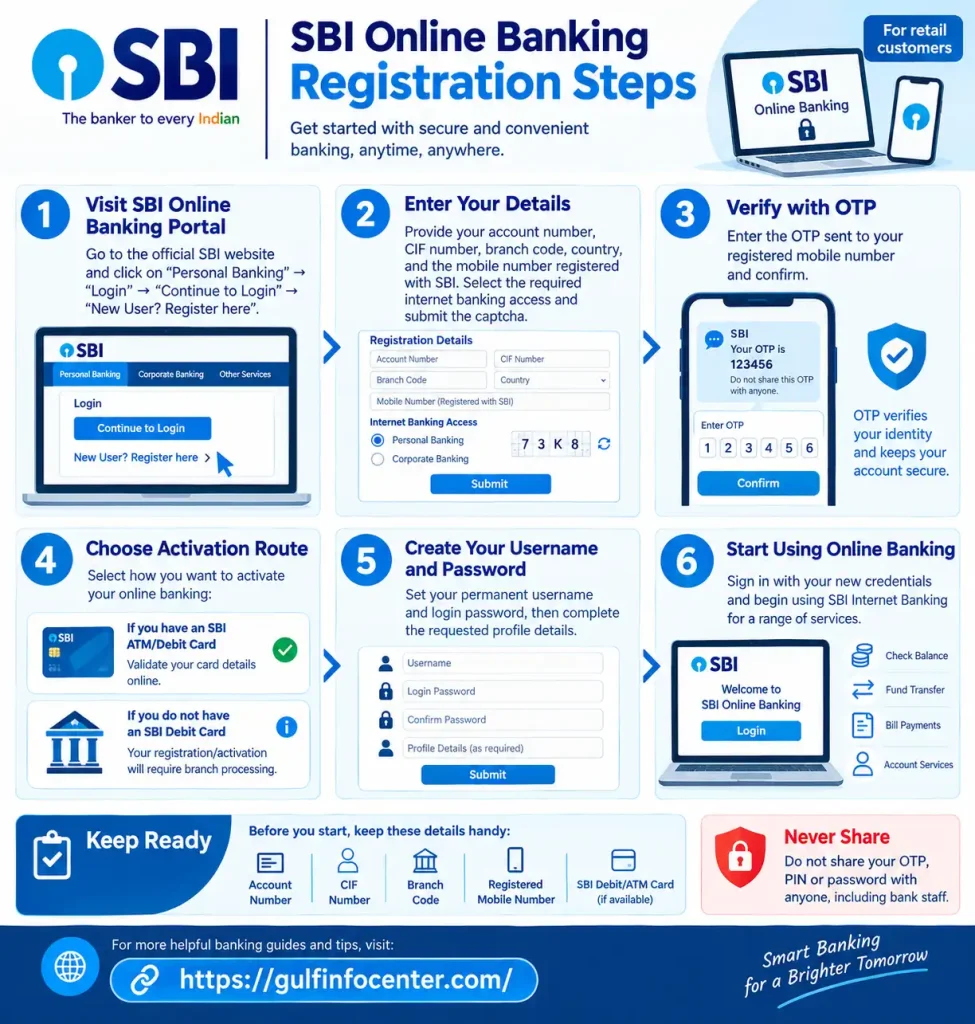
SBI Online Banking Registration Steps
Step 1: Open SBI Online
Go to the official SBI Internet Banking portal and start from the Personal Banking section.
Step 2: Open the Login Area
Select Login under Personal Banking.
Step 3: Continue to the Login Page
If an intermediate information or security screen appears, select Continue to Login.
Step 4: Find the Registration Option
Look for New User? Register Here/Activate on the login page.
Step 5: Select New User Registration
Choose the relevant option, such as New User Registration, to begin setting up internet banking access.
Step 6: Enter the Requested Information
Provide the account and other details requested by SBI on the registration screen.
Step 7: Complete Verification
Follow the on-screen instructions to complete the required verification.
Step 8: Use Card-Based Activation When Applicable
If you have an eligible SBI ATM/debit card, select the applicable card-based activation option and provide the requested card information.
Step 9: Set Up Your Login Credentials
Create the temporary or login credentials requested during the registration process.
Step 10: Finish the Registration
Complete the remaining instructions and then proceed with your first SBI Online Banking login.
Important: SBI’s registration process can differ depending on whether you have an eligible ATM/debit card. Customers without one may require branch activation.
SBI Online Banking Login
Signing in to SBI Online is a straightforward process, but you should always begin from the official internet banking portal. Keep your login details private and avoid using banking links received through unexpected messages.
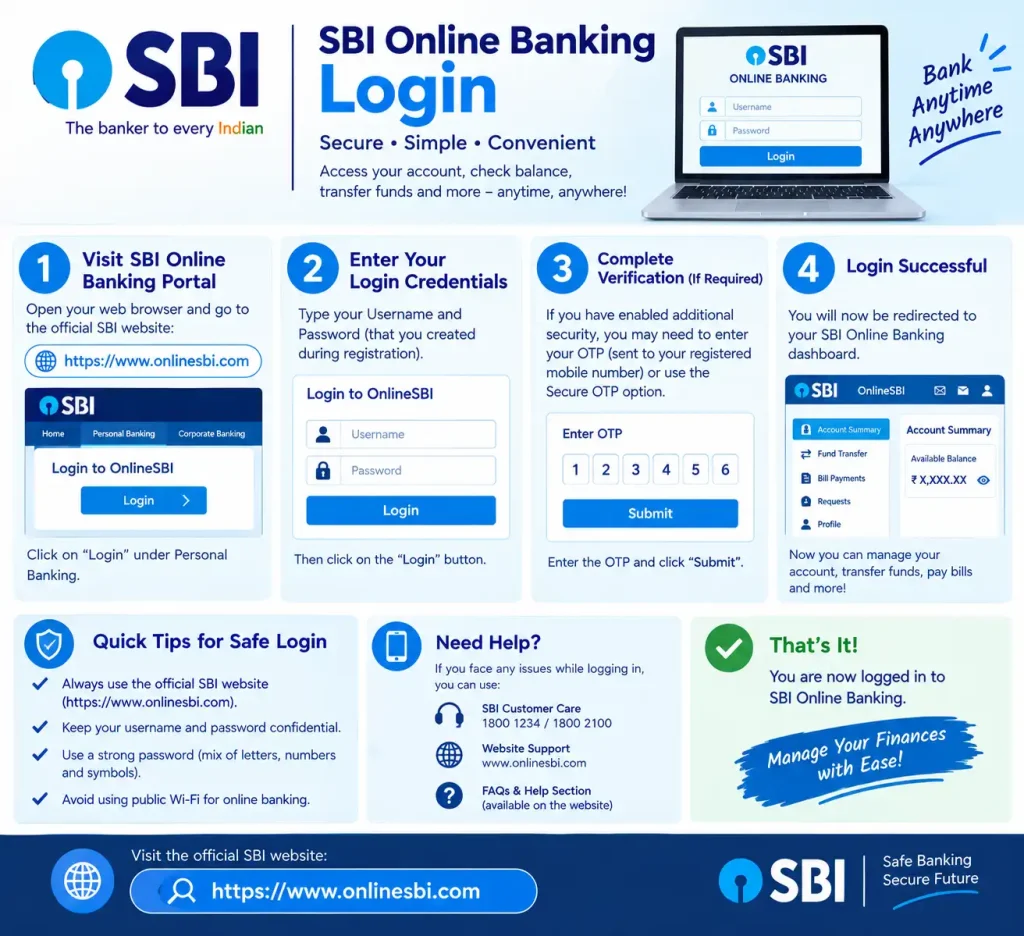
Step 1: Go to the SBI Internet Banking Portal
Visit the official SBI Online Internet Banking website:
SBI Online Internet Banking: https://onlinesbi.sbi.bank.in/
For security, don’t enter your banking credentials after opening an unexpected link from an email, SMS, or social-media message. Use the official SBI website instead.
Step 2: Choose Personal Banking
Once the SBI Online homepage opens, find the Personal Banking area and select Login to begin the sign-in process.
Step 3: Proceed to the Login Page
If SBI displays an intermediate security or information screen, select Continue to Login to move forward.
Step 4: Provide Your Login Details
Enter the information requested on the login screen, such as:
- Username
- Password
- Captcha or security verification, if displayed
Keep in mind that SBI usernames and passwords are case-sensitive, so enter them exactly as registered.
Step 5: Complete Any Additional Verification
SBI may require another authentication step depending on the service or transaction you are accessing. This can include an OTP or another verification method.
Step 6: Open Your Online Banking Dashboard
Once authentication is completed successfully, you’ll be taken to your SBI internet banking account. The dashboard will show the banking services available for your account and registration status.
First-Time SBI Online Login
Your first SBI Online Banking sign-in may involve a few additional security and account-setup steps after registration or activation. SBI’s retail internet banking information notes that new users may be asked to change their username and password, while the Profile Password provides an additional layer of security.
What to Do During Your First Login
Use the credentials created or provided during registration to access your account. If SBI displays a setup prompt, follow it carefully before continuing to the main banking dashboard.
A practical first-login checklist is:
- Sign in with your initial credentials generated or provided during registration.
- Create your permanent login credentials if SBI asks you to change them.
- Set a Profile Password when prompted.
- Use different passwords for your login password and Profile Password.
- Review your profile details after completing the initial setup.
- Check your registered contact information, including your mobile number and email address where those details are available.
Security tip: Keep your login password and Profile Password confidential, and avoid using the same password for both.
How to Access Your SBI Account
After signing in, your SBI Online Banking dashboard acts as the main access point for the services available on your account. The options displayed can vary, and SBI may change the menu structure or wording when the internet banking portal is updated.
Common areas you may see include:
- My Accounts — access account-related information.
- Payments/Transfers — manage available fund-transfer services.
- Bill Payments — access supported bill-payment options.
- Profile — review or manage available profile settings.
- Request & Enquiries — access available service requests and enquiries.
- Account Statements — view available account statements and transaction information.
- Other SBI Services — use additional facilities enabled for your account.
How to View Your SBI Account Information
Once you are logged in, use the relevant account section to check your banking information:
- Sign in to SBI Online Banking.
- Open My Accounts or the relevant account-information section.
- Select the account you want to check.
- Review the available balance and account details.
- Open the relevant statement or transaction option when you need to review account activity.
Note: SBI can change menu names, page layouts, and available options over time. If the wording on your screen differs from the steps above, follow the options currently displayed in your SBI Online Banking account.
SBI Online Fund Transfer
SBI Online Banking allows eligible customers to transfer funds between supported SBI accounts and, where available, send money to accounts held with other banks. The transfer options shown to you can depend on the services enabled for your account.
Check These Details Before Sending Money
Take a moment to verify the recipient’s information before submitting a transfer. Depending on the transaction, this may include:
- Beneficiary or account holder name, where displayed
- Account number
- Bank details
- IFSC, where applicable
- Transfer amount
- Applicable transaction limits
How to Transfer Money Through SBI Online
Follow the relevant transfer flow shown in your SBI account:
- Log in to SBI Online Banking.
- Open Payments/Transfers or the corresponding transfer section.
- Select the type of transfer you want to make.
- Choose an existing beneficiary or add one if required.
- Enter the amount you want to transfer.
- Review the beneficiary and payment details carefully.
- Complete the required authentication or OTP verification.
- Submit the transaction.
- Keep the transaction or reference number for your records.
Security reminder: Never disclose your OTP, password, PIN, or any other authentication credential to another person. Verify the recipient details before confirming a transfer.
SBI Bill Payment Services
SBI Online Banking includes bill-payment facilities for supported services. When you choose the relevant bill-payment option, SBI may direct you to SBI Unipay to complete the payment process.
How to Pay a Bill Through SBI Online
The exact options can vary depending on the biller or service you select, but the general process is:
- Sign in to sbi online mobile banking.
- Open the Bill Payment section.
- Choose the relevant biller or service.
- Enter the customer number, bill details, or other information requested.
- Review the bill amount and entered details carefully.
- Proceed with the payment.
- Complete any authentication or verification requested by SBI.
- Once the payment is processed, save the confirmation or reference number for future records.
Tip: Check the biller details and payment amount before confirming the transaction. If SBI redirects you to SBI Unipay, follow the instructions displayed on the official service.
Request a Cheque Book Online
Eligible SBI customers can use internet banking to submit a request for a cheque book without visiting a branch. The option is available through the relevant request section in SBI Online, although the processing and delivery details displayed can depend on SBI’s current service rules.
How to Request a Cheque Book
Follow these steps after signing in:
- Log in to SBI Online Banking.
- Open Request & Enquiries.
- Select Cheque Book Services.
- Choose Cheque Book Request.
- Enter or select the required account information.
- Review the request details.
- Submit the request.
Note: SBI may change the available options, processing procedure, or delivery information. Check the details displayed on your account when submitting the request.
How to Change Your SBI Login Password
If you can access your SBI Banking account with your current credentials, you can use the Profile section to change your login password. This is useful when you want to replace your existing password while you still have access to the account.
Steps to Update the Login Password
- Sign in to SBI Banking with your current credentials.
- Open the Profile section.
- Select Change Login Password.
- Enter the current and new password information requested.
- Re-enter or confirm the new password.
- Submit the password change request.
- If SBI asks you to authenticate again, sign in using your new password.
Create a Stronger Password
Avoid passwords based on information that someone could easily guess. SBI recommends using a combination of letters, numbers, and special characters when creating your password.
Security reminder: Keep your password private and never disclose it to another person, even if someone claims to be contacting you on behalf of SBI.
Forgot SBI Online Username
If you’ve forgotten your SBI Online Banking username, you can start the recovery process from the internet banking login page. Look for the Forgot Username/Forgot Password option and select the username-recovery facility.
SBI guidance indicates that the recovery process may ask for details such as your CIF number and registered mobile number. You may also need to complete OTP verification before the username can be retrieved.
Steps to Recover Your SBI Username
- Open the SBI Online internet banking portal.
- Select Login.
- Click Continue to Login if this page is displayed.
- Choose Forgot Username/Forgot Password.
- Select the option for username recovery.
- Enter the information requested by SBI.
- Complete the OTP verification process.
- Follow the instructions shown on screen to retrieve your username.
Important: SBI may change the information or verification steps used for username recovery. Always follow the instructions currently displayed on the official SBI Online Banking portal.
Forgot SBI Login Password
If you no longer remember your SBI Online login password, you can use the password-recovery facility from the internet banking login page. The available recovery options may depend on your account and situation.
Steps to Reset Your SBI Login Password
- Open the SBI Online login page.
- Select Forgot Username/Forgot Password or the relevant login-help option.
- Choose Forgot My Login Password.
- Provide the account and identification details requested by SBI.
- Complete the required OTP verification.
- Select one of the available password-reset methods.
- Follow the on-screen instructions to set or recover your login password.
SBI indicates that available reset methods can include ATM/debit card details, Profile Password, or branch assistance, depending on the customer’s circumstances.
Important: The recovery options shown by SBI may vary. Use the method available on your account and follow the instructions displayed on the official SBI Online Banking portal.
Forgot SBI Profile Password
Your Profile Password is different from your SBI Online Banking login password. It acts as an additional authentication layer for certain profile-related activities.
How to Recover Your Profile Password
If you can still access your SBI Online account, the general recovery flow is:
- Log in to SBI Online Banking.
- Open My Accounts & Profile.
- Go to the Profile section.
- Select the available Profile Password recovery option.
- Choose a verification method offered by SBI.
- Complete the required authentication.
- Set a new Profile Password as instructed.
Depending on the recovery option available for your account, SBI may provide methods involving a hint question, ATM/debit card validation, or branch assistance.
Note: The recovery method available to you can depend on your account and SBI’s current online banking options. Follow the instructions displayed in your account when recovering the Profile Password.
SBI Online Transaction Problems
If an SBI Online transaction does not seem to have gone through successfully, do not immediately repeat the transaction. First confirm its current status to avoid making the same payment or transfer twice.
What to Check First
Before taking further action:
- Check your account balance.
- Review your recent transaction history.
- Look for a transaction or reference number.
- Confirm whether the beneficiary received the funds.
- Check any SBI SMS or email notification.
- Review the transaction status shown in internet banking.
If Your Account Was Debited but the Transaction Failed
If money has been deducted but the transaction appears unsuccessful, keep the relevant details ready:
- Date and time of the transaction
- Amount debited
- Account involved
- Transaction or reference number
- Error message displayed
- Beneficiary details, where relevant
Use these details when contacting SBI’s official support or complaint channels, or speak with your SBI branch for further assistance.
SBI Online Login Troubleshooting
Login problems with SBI Online can often be resolved by checking a few basic details before trying again. Use the troubleshooting guide below to identify the issue and the appropriate next step.
| Login or Banking Issue | What You Can Try |
|---|---|
| Username or password is rejected | Re-enter your credentials carefully and check that the spelling, characters, and capitalisation are correct. |
| Password is not being accepted | Remember that SBI usernames and passwords are case-sensitive. Enter them exactly as required. |
| Captcha keeps failing | Refresh the captcha and enter the newly displayed characters rather than reusing an earlier captcha. |
| You have forgotten your password | Use SBI’s official password-recovery facility to reset or recover your login access. |
| You cannot remember your username | Use the official username-recovery option provided by SBI rather than repeatedly attempting to log in. |
| OTP has not arrived | Check that your registered mobile number has network connectivity. Wait briefly before requesting another OTP. |
| The SBI Online page will not open | Check your internet connection, reload the page, and try accessing the service again. |
| Your session has expired | Return to the login page and sign in again to start a new session. |
| Your account is locked or restricted | Follow the recovery instructions shown by SBI. If the issue continues, contact SBI through its official support channels. |
| A transaction has a problem | Review your transaction history and keep the transaction or reference number available when seeking assistance. |
A couple of login details to remember
SBI states that its usernames and passwords are case-sensitive, so even a small difference in capitalisation can prevent successful login. In some situations, credentials issued by the bank may also be intended for one-time use during the initial setup process.
If repeated login attempts do not resolve the problem, avoid guessing credentials repeatedly. Use the relevant SBI recovery or support option instead.
SBI Online Banking Security Tips
Protecting your banking details is essential whenever you access SBI online banking. A few simple habits can help reduce the risk of exposing your account information.
Safe Banking Practices
- Access SBI Online only through the official SBI website.
- Confirm that the website uses HTTPS before entering sensitive information.
- Create a strong, unique password and keep it private.
- Sign out of your account after completing your banking session.
- Keep your operating system, browser, and security updates current.
- Check your account activity regularly for anything unusual.
- Whenever possible, use a personal and trusted device for banking.
- Avoid carrying out online banking transactions over public or open Wi-Fi networks.
SBI advises customers to protect confidential credentials, including usernames, passwords, PINs, card details, and other sensitive information.
Information You Should Never Share
Some banking details should remain private, even if someone claims to represent the bank:
- OTP or one-time password
- Internet banking password
- ATM or debit card PIN
- Username or login credentials
- Card and other confidential banking information
Avoid logging into your account through unfamiliar links or saving banking passwords on shared or public computers. Be particularly cautious when someone unexpectedly asks for your banking information by phone, SMS, or email.
SBI states that customers should not provide confidential information such as usernames, passwords, or OTPs in response to unsolicited calls, messages, or emails.
Security reminder: If a message or person asks you to reveal an OTP, password, or PIN, do not disclose it. Use the official SBI website or trusted banking channels instead.
SBI Online Banking for NRI Customers
SBI offers dedicated banking information and services for Non-Resident Indian (NRI) customers. The procedures, eligibility requirements, and account-related processes may differ from those used for standard resident retail accounts.
If you are an NRI or foreign resident with an SBI account, review the guidance that applies to your specific NRI account type before submitting an account-related request. This can help ensure you follow the correct process and requirements.
SBI Online Banking Quick Guide
Use the table below to quickly find the SBI Online Banking option you need:
| Task | Where to Start |
|---|---|
| Sign in | SBI Online → Personal Banking → Login |
| Create an account | Login → Continue → New User/Register |
| Find your username | Forgot Username / Forgot Password |
| Reset login password | Forgot Username / Forgot Password → Forgot Login Password |
| Change login password | Profile → Change Login Password |
| Recover profile password | Profile → Forgot Profile Password |
| Send money | Payments / Transfers |
| Pay a bill | Bill Payment |
| Order a cheque book | Request & Enquiries → Cheque Book Services |
| Check transactions | My Accounts → Transaction History |
| Get assistance | SBI official support or branch channels |
Quick tip: Choose the option that matches your task, then follow the instructions shown within SBI Online Banking.
FAQs
Final Thoughts
Navigating State Bank of India’s digital ecosystem in 2026 highlights a major shift toward complete digital autonomy. Modern platforms like YONO SBI and OnlineSBI have evolved far beyond basic balance-checking tools into comprehensive financial hubs.